<?xml version="1.0" encoding="utf-8"?><feed xmlns="http://www.w3.org/2005/Atom" ><generator uri="https://jekyllrb.com/" version="3.10.0">Jekyll</generator><link href="https://ouestcharlie.github.io/feed.xml" rel="self" type="application/atom+xml" /><link href="https://ouestcharlie.github.io/" rel="alternate" type="text/html" /><updated>2026-09-30T19:47:46+00:00</updated><id>https://ouestcharlie.github.io/feed.xml</id><title type="html">OuEstCharlie Woof</title><subtitle>Local photo gallery, AI-native — built on open standards (XMP, MCP Apps, LanceDB) and privacy</subtitle><author><name>(c) Antoine Hue</name></author><entry><title type="html">Use an AI workflow to sort and enrich photos using your Strava activity log</title><link href="https://ouestcharlie.github.io/2026/08/27/ai-workflow-sort-photos-using-strava-activity-log/" rel="alternate" type="text/html" title="Use an AI workflow to sort and enrich photos using your Strava activity log" /><published>2026-08-27T00:00:00+00:00</published><updated>2026-08-31T00:00:00+00:00</updated><id>https://ouestcharlie.github.io/2026/08/27/ai-workflow-sort-photos-using-strava-activity-log</id><content type="html" xml:base="https://ouestcharlie.github.io/2026/08/27/ai-workflow-sort-photos-using-strava-activity-log/"><![CDATA[<p>If you record and save to Strava your hikes, rides, runs or ski tours, you already have a log of what
you did and when. Your photos have timestamps too. That’s enough to file them
into folders and caption them, without you naming anything.</p>

<h2 id="what-you-need">What you need</h2>

<p><strong>Woof, installed in Claude Desktop with license</strong> — see
<a href="/2026/05/13/claude-how-to-step-by-step/">Step by Step Install of OuEstCharlie Woof in Claude Desktop</a>.</p>

<p><strong>The photo workflow skills</strong>, which come from the <code class="language-plaintext highlighter-rouge">woof-photo-workflows</code>
plugin. They are packaged as a plugin in Woof, see also <a href="/2026/04/01/ouestcharlie-woof-install-first-steps/#install-skill-plugin-optional">Install skill plugin</a>.</p>

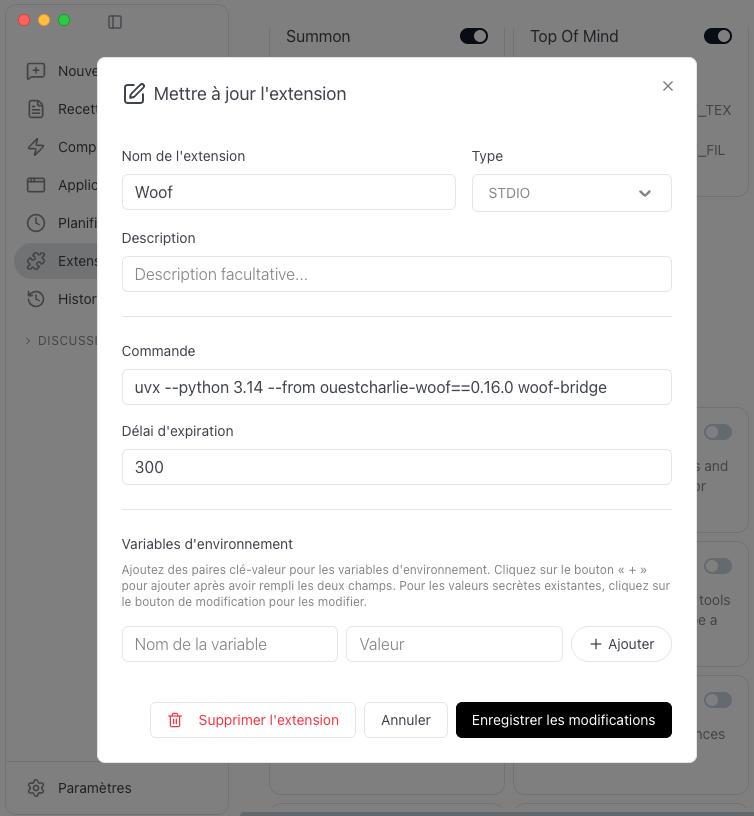
<p><strong>The <a href="https://support.strava.com/en-us/articles/15401531-strava-mcp-connector">Strava MCP Connector</a></strong>,
but only for the very last step, on your own photos. Everything before that
works without it, because you’ll practise on a folder you control.</p>

<p>To connect it in Cowork or on claude.ai: <strong>Customize → Connectors → + →</strong> search
“Strava” → <strong>Connect</strong>, then authorise with your Strava account. You sign in to
Strava and grant access — there are no keys to paste. It’s read-only, so it can
read your activities but never change them. It needs an <strong>active Strava subscription</strong>.</p>

<p><strong>Don’t use Strava?</strong> Export your activities from wherever you track them into a
file and point Claude at it instead. Each activity needs a start time, end time,
name and sport type; distance, elevation and duration only change how the
caption reads.</p>

<video controls="" width="100%" poster="/assets/Claude+Strava+WoofSkill/sort-enrich-photos-with-claude-strava-woof.jpg">
  <source src="/assets/Claude+Strava+WoofSkill/sort-enrich-photos-with-claude-strava-woof.mp4" type="video/mp4" />
</video>

<h2 id="a-word-on-sidecars">A word on sidecars</h2>

<p>The photo will be enriched with descriptions and tags. This metadata lives in <strong>sidecars</strong>. 
A sidecar is a small text file that sits
beside each photo. Adding a <code class="language-plaintext highlighter-rouge">.xmp</code> file next to <code class="language-plaintext highlighter-rouge">skiday1.jpg</code> doesn’t touch
<code class="language-plaintext highlighter-rouge">skiday1.jpg</code> itself, which is why this is safe. And because the information
lives beside your files rather than inside an app, it travels with them.</p>

<p><strong>Nothing is written until you approve it.</strong> Every operation shows you a plan
and waits. If you’re asked to approve something you don’t understand, say so.</p>

<h2 id="set-up-a-practice-folder">Set up a practice folder</h2>

<p>Work on <strong>copies</strong>, so your originals are never at risk.</p>

<ol>
  <li>Make a new empty folder somewhere convenient — say <code class="language-plaintext highlighter-rouge">PhotoPractice</code>.</li>
  <li>Inside it, create a subfolder called <strong><code class="language-plaintext highlighter-rouge">Camera</code></strong>.</li>
  <li><strong>Copy</strong> — don’t move — 20 to 50 photos into <code class="language-plaintext highlighter-rouge">Camera</code>. Pick a stretch of time
you remember, ideally including a day you recorded an activity.</li>
</ol>

<p>Using your own photos rather than made-up ones matters: they have real capture
times, real GPS, and the real mess of a camera roll. That’s what you’re learning
to sort.</p>

<p>Register the library in Woof with the prompt:</p>

<blockquote>
  <p>Register a new library “test” at /<the>/<path>/<to>/<the>/<library> in Woof</library></the></to></path></the></p>
</blockquote>

<h2 id="set-the-folder-context-and-invoke-the-skill">Set the folder context and invoke the skill</h2>

<p>From the AI Assistant (Claude CoWork or VSCode chat), add to the project the library directory on your computer.</p>

<p>Then invoke the skill from the prompt:</p>

<blockquote>
  <p>/woof-photo-workflows:sort-enrich-photos-strava</p>
</blockquote>

<p>It will first ask to index the library, and then start the analysis.</p>

<p><strong>Indexing runs in the background.</strong> Woof posts <strong>“Indexing complete.”</strong> into the
conversation when it finishes. Wait for that message before carrying on — Claude
can’t see the progress and shouldn’t guess.</p>

<p>Once it’s done, confirm the indexing is complete. The AI assistant will fetch Strava activities, create a local log, correlate to photos dates and eventually come up with a plan.</p>

<h2 id="answer-questions-and-review-plan">Answer questions and review plan</h2>

<p>Based on the findings in your activity log and the local photos, the AI assistant might ask you questions 
to clarify your decisions, including the naming of the folder.</p>

<p><strong>Commutes should be left out, and you’ll be asked.</strong> If you log rides to work
or daily runs, those repeat under an auto-generated name like “Morning ride”.
Claude spots the repetition and checks with you before excluding them — a folder
named after a ten-minute ride to the office helps nobody. But a daily run you’re
proud of looks identical from the outside, which is why you get asked rather than
told.</p>

<p><strong>Photos just outside the window still count.</strong> People photograph the trailhead
before starting the watch and the car park after stopping it. A tolerance of
about 30 minutes catches them.</p>

<p><strong>Most photos won’t match, and that’s fine.</strong> A camera roll is mostly family and
home. Around 15% matching is normal. If nearly everything matches, the tolerance
is too wide and unrelated photos are being swept in.</p>

<h2 id="sort-and-caption-them">Sort and caption them</h2>

<p>You’ll get every file, its destination, and the exact caption and tags — and
<strong>nothing has changed yet</strong>. This is the pattern for everything here: propose,
wait, then act.</p>

<p>Two things to check before approving:</p>

<ul>
  <li><strong>Is anything going into a folder that already exists?</strong> It should reuse the
waiting folder, not create a near-duplicate beside it.</li>
  <li><strong>Are any files listed as having no sidecar?</strong> Those move but stay
uncaptioned. Better to know now than to wonder later.</li>
</ul>

<p>Then:</p>

<blockquote>
  <p>Looks right, go ahead. Afterwards, confirm it worked.</p>
</blockquote>

<h2 id="photos-with-no-timestamp">Photos with no timestamp</h2>

<p>If any of your photos arrived via a messaging app, their capture time was
probably stripped on the way. They’ll show up as unmatched with no date at all.</p>

<blockquote>
  <p>Which photos have no capture time? Can you still file them with the right
outing?</p>
</blockquote>

<p>The date in the filename plus “only one activity happened that day” is usually
enough to place them, and Claude can stamp a capture time so they sort correctly
from then on.</p>

<p>Worth trying if you have any — it’s the most common real-world mess, and the one
thing that silently breaks date-based sorting later.</p>

<h2 id="before-doing-this-for-real-take-a-snapshot">Before doing this for real: take a snapshot</h2>

<p>Captions and tags are the one part of a photo library you can’t get back.
Rebuilding an index can regenerate sidecar files and discard what you wrote.</p>

<blockquote>
  <p>Snapshot all the sidecars with descriptions or tags in my real photo library,
and tell me where you put the archive.</p>
</blockquote>

<p>It takes seconds. Do it before any big operation, including ones that look safe.</p>

<h2 id="now-your-whole-library">Now your whole library</h2>

<p>The practice folder held copies. When you’re ready to do this for real, point
Claude at the library itself:</p>

<blockquote>
  <p>Look at my photo library and tell me which photos from last month match an
activity. Don’t change anything.</p>
</blockquote>

<p><strong>“Don’t change anything” is a complete instruction</strong> and will be respected.</p>

<p>If nothing matches at all, check the eligibility question from the top of this
page before blaming your photos. An unconnected activity log looks exactly like
having no matching activities — both give zero results and no error.</p>

<p align="center">
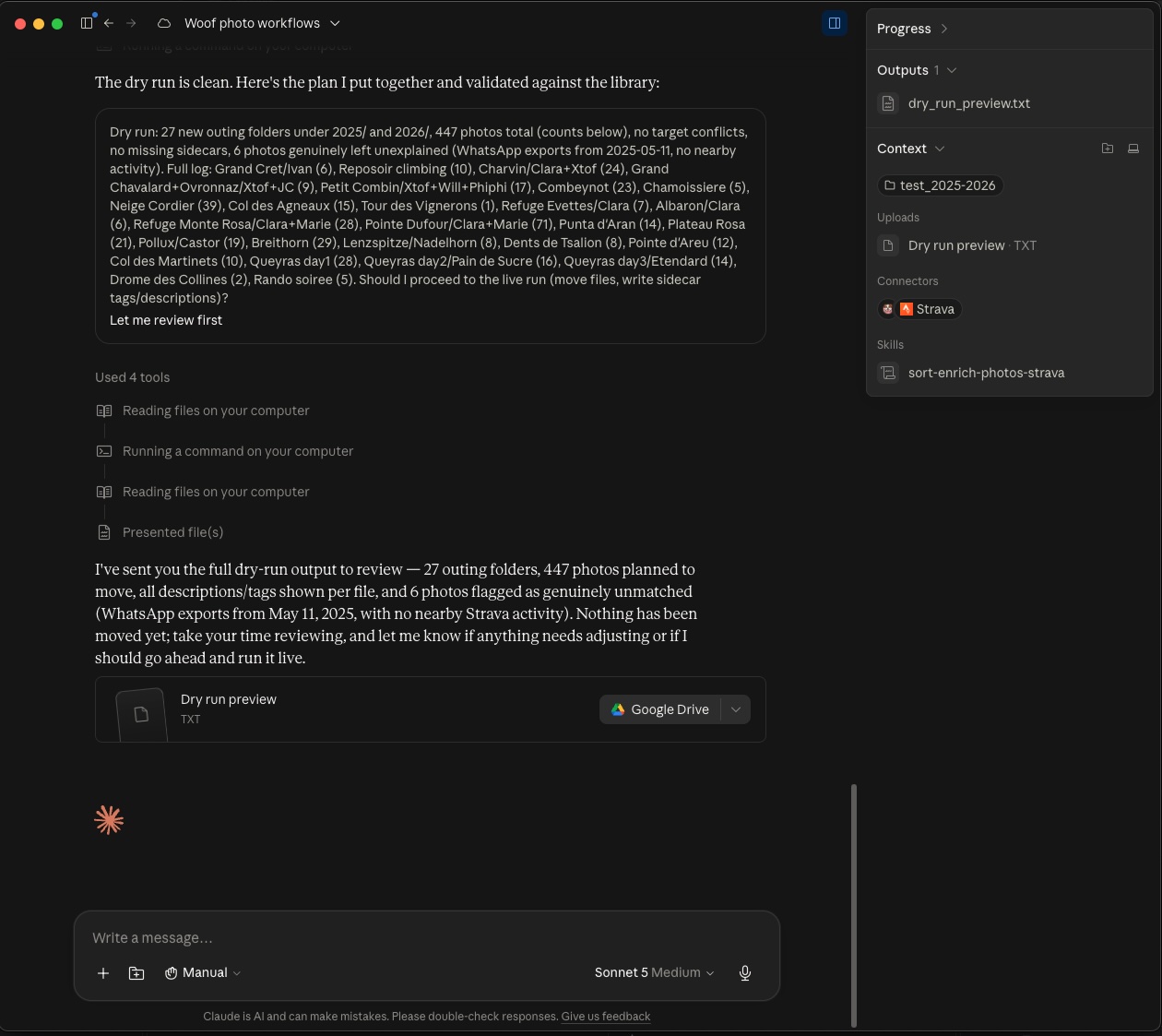
  <img src="/assets/screenshot_2026-08-26_ClaudeCoWork_Woof-sort-enrich-strava.jpg" alt="Claude CoWork has correlated the Strava Activity Log with the photos and proposing a plan to sort and enrich photos" max-height="600" /><br />
  <em>Claude CoWork has correlated the Strava Activity Log with the photos and proposing a plan to sort and enrich photos</em>
</p>

<h2 id="tidying-up">Tidying up</h2>

<p>When you’re finished with the practice folder:</p>

<blockquote>
  <p>Unregister the practice library from Woof.</p>
</blockquote>

<p>Then delete the folder itself. Unregistering only tells Woof to stop tracking
it — your photos stay where they are, which is the behaviour you want given
they were copies of originals you still have.</p>

<h2 id="what-youve-learned">What you’ve learned</h2>

<ul>
  <li>Timestamps are enough to file and caption activity photos</li>
  <li>Routine log entries should be filtered out, by name rather than distance</li>
  <li>A tolerance around the window catches the best photos of the day</li>
  <li>Nothing is written until you approve a plan</li>
  <li>Snapshot before anything that rewrites sidecars</li>
</ul>

<h2 id="what-about-everything-else">What about everything else?</h2>

<p>Your activity log only explains the photos taken during a recorded activity —
typically around 15% of a camera roll. The rest is family, home and holidays,
and no log will ever identify those.</p>

<p>If you want to sort those too, there’s a separate tutorial for it:
<strong><a href="/2026/08/26/ai-workflow-sort-photos-by-grouping-clusters/">Sort photos by grouping them into clusters</a></strong>.
It stands alone, so you can go there now or come back another day.</p>]]></content><author><name>(c) Antoine Hue</name></author><category term="tutorial" /><category term="workflow" /><category term="CoWork" /><category term="Strava" /><summary type="html"><![CDATA[If you record and save to Strava your hikes, rides, runs or ski tours, you already have a log of what you did and when. Your photos have timestamps too. That’s enough to file them into folders and caption them, without you naming anything.]]></summary><media:thumbnail xmlns:media="http://search.yahoo.com/mrss/" url="https://ouestcharlie.github.io/assets/screenshot_2026-08-26_ClaudeCoWork_Woof-sort-enrich-strava.jpg" /><media:content medium="image" url="https://ouestcharlie.github.io/assets/screenshot_2026-08-26_ClaudeCoWork_Woof-sort-enrich-strava.jpg" xmlns:media="http://search.yahoo.com/mrss/" /></entry><entry><title type="html">Use an AI workflow to sort and enrich photos by grouping them into clusters</title><link href="https://ouestcharlie.github.io/2026/08/26/ai-workflow-sort-photos-by-grouping-clusters/" rel="alternate" type="text/html" title="Use an AI workflow to sort and enrich photos by grouping them into clusters" /><published>2026-08-26T00:00:00+00:00</published><updated>2026-08-26T00:00:00+00:00</updated><id>https://ouestcharlie.github.io/2026/08/26/ai-workflow-sort-photos-by-grouping-clusters</id><content type="html" xml:base="https://ouestcharlie.github.io/2026/08/26/ai-workflow-sort-photos-by-grouping-clusters/"><![CDATA[<p>Most of a camera roll is family, home, holidays, and Saturdays you’d have to
think about for a moment. Nothing can guess what those days were — you know, and
the job is getting that out of your head efficiently rather than grinding
through hundreds of files one at a time.</p>

<p>The method of this tutorial is to interactively group photos by day, deal with the biggest groups first, stop when
you’ve had enough. In the process, photo are enriched with descriptions and tags.</p>

<h2 id="what-you-need">What you need</h2>

<p><strong>Woof, installed in your Assistant Desktop (Claude Desktop with license, VSCode Chat…)</strong> — see
<a href="/2026/04/01/ouestcharlie-woof-install-first-steps/">How to install and first steps with Woof</a>
or the <a href="/2026/05/13/claude-how-to-step-by-step/">Step by Step Install of OuEstCharlie Woof in Claude Desktop</a>.</p>

<p><strong>The photo workflow skills</strong>, which come from the <code class="language-plaintext highlighter-rouge">woof-photo-workflows</code>
plugin. They are packaged as a plugin in Woof, see also <a href="/2026/04/01/ouestcharlie-woof-install-first-steps/#install-skill-plugin-optional">Install skill plugin</a>.</p>

<h2 id="a-word-on-sidecars">A word on sidecars</h2>

<p>The photo will be enriched with descriptions and tags. This metadata lives in <strong>sidecars</strong>. 
A sidecar is a small text file that sits
beside each photo. Adding a <code class="language-plaintext highlighter-rouge">.xmp</code> file next to <code class="language-plaintext highlighter-rouge">holiday.jpg</code> doesn’t touch
<code class="language-plaintext highlighter-rouge">holiday.jpg</code> itself, which is why this is safe. And because the information
lives beside your files rather than inside an app, it travels with them.</p>

<p><strong>Nothing is written until you approve it.</strong> Every operation shows you a plan
and waits. If you’re asked to approve something you don’t understand, say so.</p>

<h2 id="set-up-a-practice-folder">Set up a practice folder</h2>

<p>Work on <strong>copies</strong>, so your originals are never at risk.</p>

<ol>
  <li>Make a new empty folder somewhere convenient — say <code class="language-plaintext highlighter-rouge">PhotoPractice</code>.</li>
  <li>Inside it, create a subfolder called <strong><code class="language-plaintext highlighter-rouge">Camera</code></strong>.</li>
  <li><strong>Copy</strong> — don’t move — 50 or so photos into <code class="language-plaintext highlighter-rouge">Camera</code>. Grab a few months, so
there are several distinct days to find.</li>
</ol>

<p>Using your own photos matters here more than anywhere: the whole skill is
recognising your own days at a glance, and you can’t practise that on invented
ones.</p>

<p>Register the library in Woof with the prompt:</p>

<blockquote>
  <p>Register a new library “test” at /<the>/<path>/<to>/<the>/<library> in Woof</library></the></to></path></the></p>
</blockquote>

<h2 id="set-the-folder-context-and-invoke-the-skill">Set the folder context and invoke the skill</h2>

<p>From the AI Assistant (Claude CoWork or VSCode chat), add to the project the library directory on your computer.</p>

<p>Then invoke the skill from the prompt:</p>

<blockquote>
  <p>/woof-photo-workflows:sort-enrich-photos-interactive-clusters</p>
</blockquote>

<p>It will first ask to index the library, and then start the analysis.</p>

<p><strong>Indexing runs in the background.</strong> Woof posts <strong>“Indexing complete.”</strong> into the
conversation when it finishes. Wait for that message before carrying on — the AI Assistant
can’t see the progress and shouldn’t guess.</p>

<h2 id="work-biggest-first">Work biggest first</h2>

<p>The AI Assistant will identify largest photo cluster by date and show the corresponding photos
in the Woof gallery.</p>

<p>You’ll get something like <em>20 June: 14 photos, 12 July: 6, 27 June: 2</em>.</p>

<p>This ordering is the whole trick. A handful of dates usually accounts for most
of the backlog, so naming three groups can file half the folder. Working in
date order instead spends your attention on single stray photos while the big
groups wait.</p>

<p>Look at the pictures. You’ll usually recognise the day in a second or two — and
if you don’t, that’s useful information: it probably doesn’t deserve its own
folder.</p>

<p>Two things help when a group isn’t obvious:</p>

<p><strong>Location.</strong> Ask <em>where were these taken?</em> Many phone photos carry GPS, and a
map reference often jogs the memory. If they have none you’ll be told, rather
than given a guess.</p>

<p><strong>Neighbouring days.</strong> Ask <em>do the days either side have photos too?</em> Three
consecutive days often means one trip, and deciding that before naming is much
cheaper than merging three folders afterwards.</p>

<h2 id="name-it">Name it</h2>

<blockquote>
  <p>That’s a weekend at the lake with the family. Folder LakeWeekend, tags Family
and Holiday, description “Weekend at the lake”.</p>
</blockquote>

<p>Then the next group, and the next. Two or three exchanges each.</p>

<p><strong>If a name is proposed for you, check it.</strong> Where a name can be derived you’ll
get a suggestion, labelled as a guess. An invented folder name you didn’t notice
is worse than being asked.</p>

<h2 id="handle-the-exceptions">Handle the exceptions</h2>

<p>Real days aren’t tidy. Two cases come up constantly, and both are handled by
overriding rather than by inventing a rule.</p>

<p><strong>A day that’s mostly one thing, plus something else:</strong></p>

<blockquote>
  <p>Put 12 and 13 July in the holiday folder, except the morning photos — those
get their own folder.</p>
</blockquote>

<p><strong>A single file in the wrong place:</strong></p>

<blockquote>
  <p>Move just that 12:54 photo into the other folder.</p>
</blockquote>

<p>That’s the model: rules for the common case, overrides for everything else.
Resist adding configuration for a one-off — an override you can read in a plan
is clearer than a rule you’ll have forgotten in a year.</p>

<p align="center">
  <img src="/assets/screenshot_2026-04-11_vscode_interactive_skill.jpg" alt="Automatically cluster, review in the OuEstCharlie Woof gallery and sort photos from VSCode Chat" max-height="600" /><br />
  <em>Automatically cluster, review in the OuEstCharlie Woof gallery and sort photos from VSCode Chat</em>
</p>

<h2 id="review-the-plan-properly">Review the plan properly</h2>

<blockquote>
  <p>Show me the full plan for everything we’ve decided.</p>
</blockquote>

<p>Check three things before approving:</p>

<ul>
  <li><strong>File counts per folder</strong> — far more or fewer than you expect means a group
wasn’t what you thought</li>
  <li><strong>Anything left over</strong> — files with no destination are fine, but you should
know they’re staying put</li>
  <li><strong>Files with no sidecar</strong> — they’ll move but stay uncaptioned</li>
</ul>

<p>Then:</p>

<blockquote>
  <p>Go ahead. Afterwards, tell me what’s still unsorted.</p>
</blockquote>

<h2 id="knowing-when-to-stop">Knowing when to stop</h2>

<p>You don’t have to finish. Filing the five biggest groups and leaving forty
stray photos is a perfectly good outcome — those forty were never going to be
found by browsing anyway, and they’ll still be there next time.</p>

<blockquote>
  <p>Let’s stop here. Leave the rest as they are.</p>
</blockquote>

<h2 id="tidying-up">Tidying up</h2>

<p>When you’re finished with the practice folder:</p>

<blockquote>
  <p>Unregister the practice library from Woof.</p>
</blockquote>

<p>Then delete the folder itself. Unregistering only tells Woof to stop tracking
it — your photos stay where they are, which is the behaviour you want given
they were copies of originals you still have.</p>

<h2 id="what-youve-learned">What you’ve learned</h2>

<ul>
  <li>Biggest groups first: a few days account for most of the work</li>
  <li>Look at the photos before naming; ask about location and neighbouring days</li>
  <li>Rules for the common case, overrides for exceptions</li>
  <li>Stopping early is a legitimate outcome</li>
</ul>]]></content><author><name>(c) Antoine Hue</name></author><category term="tutorial" /><category term="workflow" /><category term="CoWork" /><category term="VSCode" /><summary type="html"><![CDATA[Most of a camera roll is family, home, holidays, and Saturdays you’d have to think about for a moment. Nothing can guess what those days were — you know, and the job is getting that out of your head efficiently rather than grinding through hundreds of files one at a time.]]></summary><media:thumbnail xmlns:media="http://search.yahoo.com/mrss/" url="https://ouestcharlie.github.io/assets/screenshot_2026-04-11_vscode_interactive_skill.jpg" /><media:content medium="image" url="https://ouestcharlie.github.io/assets/screenshot_2026-04-11_vscode_interactive_skill.jpg" xmlns:media="http://search.yahoo.com/mrss/" /></entry><entry><title type="html">Create your personal photo gallery with Claude, Strava and OuEstCharlie Woof</title><link href="https://ouestcharlie.github.io/2026/07/31/personal-photo-gallery-Claude-Strava-OuEstCharlie-Woof/" rel="alternate" type="text/html" title="Create your personal photo gallery with Claude, Strava and OuEstCharlie Woof" /><published>2026-07-31T00:00:00+00:00</published><updated>2026-08-03T00:00:00+00:00</updated><id>https://ouestcharlie.github.io/2026/07/31/personal-photo-gallery-Claude-Strava-OuEstCharlie-Woof</id><content type="html" xml:base="https://ouestcharlie.github.io/2026/07/31/personal-photo-gallery-Claude-Strava-OuEstCharlie-Woof/"><![CDATA[<p>Personal photo galleries are a great asset; they gather and keep many memories of our life. However, creating and managing one is also a challenge and consumes time. Digital photos have not changed much from the old paper photo albums: we must sort photos in albums or their digital equivalent (tags, smart albums), add captions, and name the people. We got accustomed to delegating this to packaged services like Google or Apple photo applications, but then <a href="/2026/04/10/why-we-need-to-move-past-gallery-apps/">we get dependent on those: the metadata is created there and remains there</a>.</p>

<p>New AI tools and their integrations may change that. In the following tutorial, we show how to create, search and browse a photo library in Claude. Starting from a folder full of photos, use <strong>Claude CoWork</strong> to automatically sort photos into folders and add captions. This extra information comes from your <strong>Strava activity log</strong>. Eventually, the photos are indexed into <strong>OuEstCharlie Woof</strong> so that they are searched and browsed directly from Claude. Added information is co-located with photos; everything remains local to your machine.</p>

<h2 id="getting-the-pictures-in-claude-cowork">Getting the pictures in Claude CoWork</h2>

<p>First import your photos from the camera or smartphone to a folder on your computer. As usual when using (AI) automation, <strong>be sure to make a backup of this valuable asset</strong>.</p>

<p>The Claude Desktop application is required. At the prompt footer, select the “CoWork” module. CoWork is a variant of the chat that is specialized in interacting with your information and files.</p>

<p>Below the prompt box, click on “Folder or project”, select the folder in which the photos are, and allow Claude CoWork to edit those files.</p>

<video controls="" width="100%" poster="/assets/Claude+Strava+Woof/CreateYourPhotoGallery_ClaudeStravaWoof-Cover.jpg">
  <source src="/assets/Claude+Strava+Woof/CreateYourPhotoGallery_ClaudeStravaWoof.mp4" type="video/mp4" />
</video>

<h2 id="sort-the-photos-with-claude-and-strava">Sort the photos with Claude and Strava</h2>

<p>Strava will supply the activity data used to auto-caption and organize your photos. Strava is added to Claude through a connector. Assuming you have a subscription with Strava, from the “Customize” section of the Claude settings, select the “Connectors” tab and search or add (depending on the Claude Desktop version) the Strava connector from the marketplace. You will need to log into Strava with your credentials.</p>

<p>You may prompt the photo reorganization as follow, adapt to your taste:</p>

<blockquote>
  <p>I would like to sort the pictures in the project folders by date and also add a description.
Most of the photos are from sport outings, you can use the Strava integration to get the corresponding outing of that day.
I usually name the photo folder with ISO dates and PascalCase (each word capitalized, no spaces) for the goal of the day and, if available, the name of the persons with me.
E.g.: 2025-06-12_MontBlanc_Paul
Please validate the folder structure before moving any pictures. Ask if any information is missing.</p>
</blockquote>

<p>The last two instructions are very important as there are probably incomplete outing descriptions in Strava, and many exceptions you want to handle carefully.</p>

<p align="center">
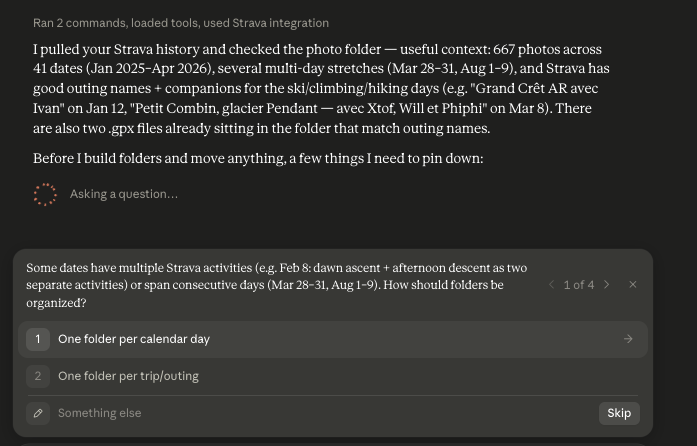
  <img src="/assets/Claude+Strava+Woof/001_ClaudeFirstShow.png" alt="First shot from Claude using Strava activity stream to sort photos" max-height="600" /><br />
  <em>First shot from Claude using Strava activity stream to sort photos</em>
</p>

<p>As instructed, Claude uses the Strava connector to fetch information from the activity stream, analyze this information relative to the photo dates, and ask for clarifications when needed.</p>

<p>The first question is about how to handle a day with two activities in Strava. This actually underlines a limit of the prompt: it only requires matching the activity with the photo day, but does not specify matching the time of the day as well.</p>

<p>Claude eventually highlights that some photos do not have a matching outing, and proposes to name the corresponding folder with the ISO date only.</p>

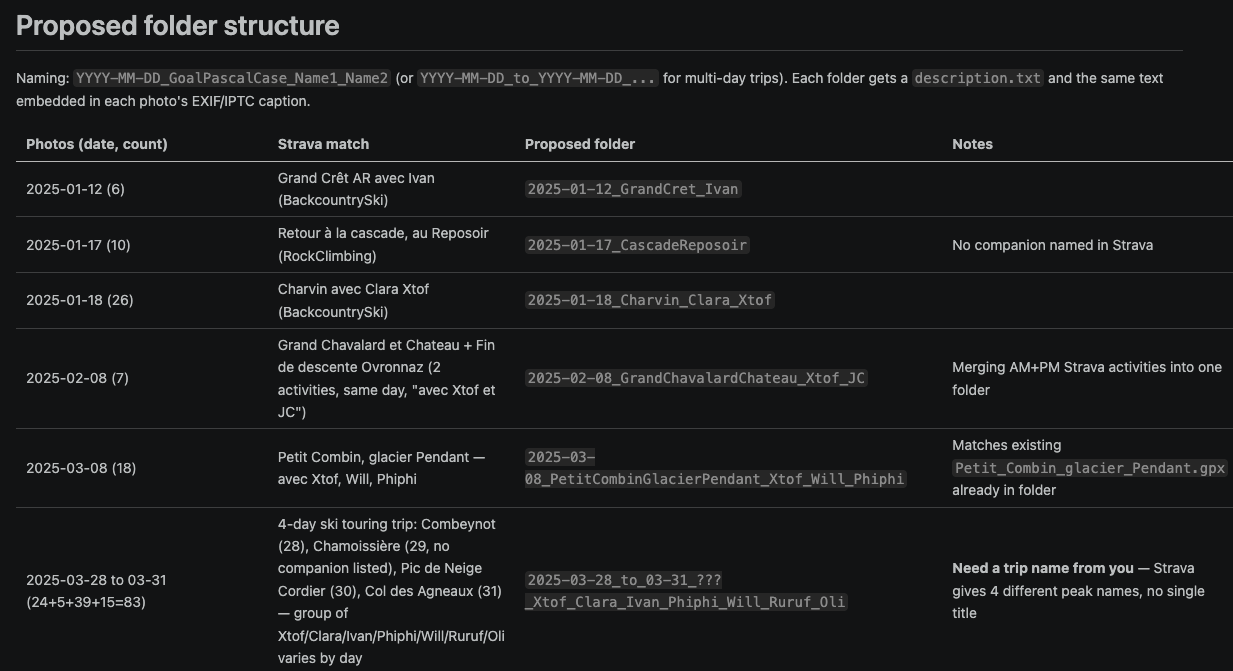
<p>As per instruction, a draft folder structure is created for review and validation.</p>

<p align="center">
  <img src="/assets/Claude+Strava+Woof/002_draftFolderStructure.png" alt="Draft folder structure from Claude" max-height="600" /><br />
  <em>Draft folder structure from Claude</em>
</p>

<p>Claude is able to detect multi-day trips and asks for the corresponding name:</p>

<blockquote>
  <p>Mar 28–31, 2025: a 4-day ski touring trip (Combeynot, Chamoissière, Pic de Neige Cordier, Col des Agneaux) with a rotating group of 7. What should I call this trip in the folder name?</p>
</blockquote>

<p>When all clarifications are made, Claude generates the Python code for the folder creation, the photo file movement. If you know this language, you may review the intended modifications.</p>

<p>Following user validation, Claude executes the plan and provides a summary of the changes. You may check the folder structure and the photo assignments.</p>

<h2 id="search-and-browse-the-photos-in-ouestcharlie-woof">Search and browse the photos in OuEstCharlie Woof</h2>

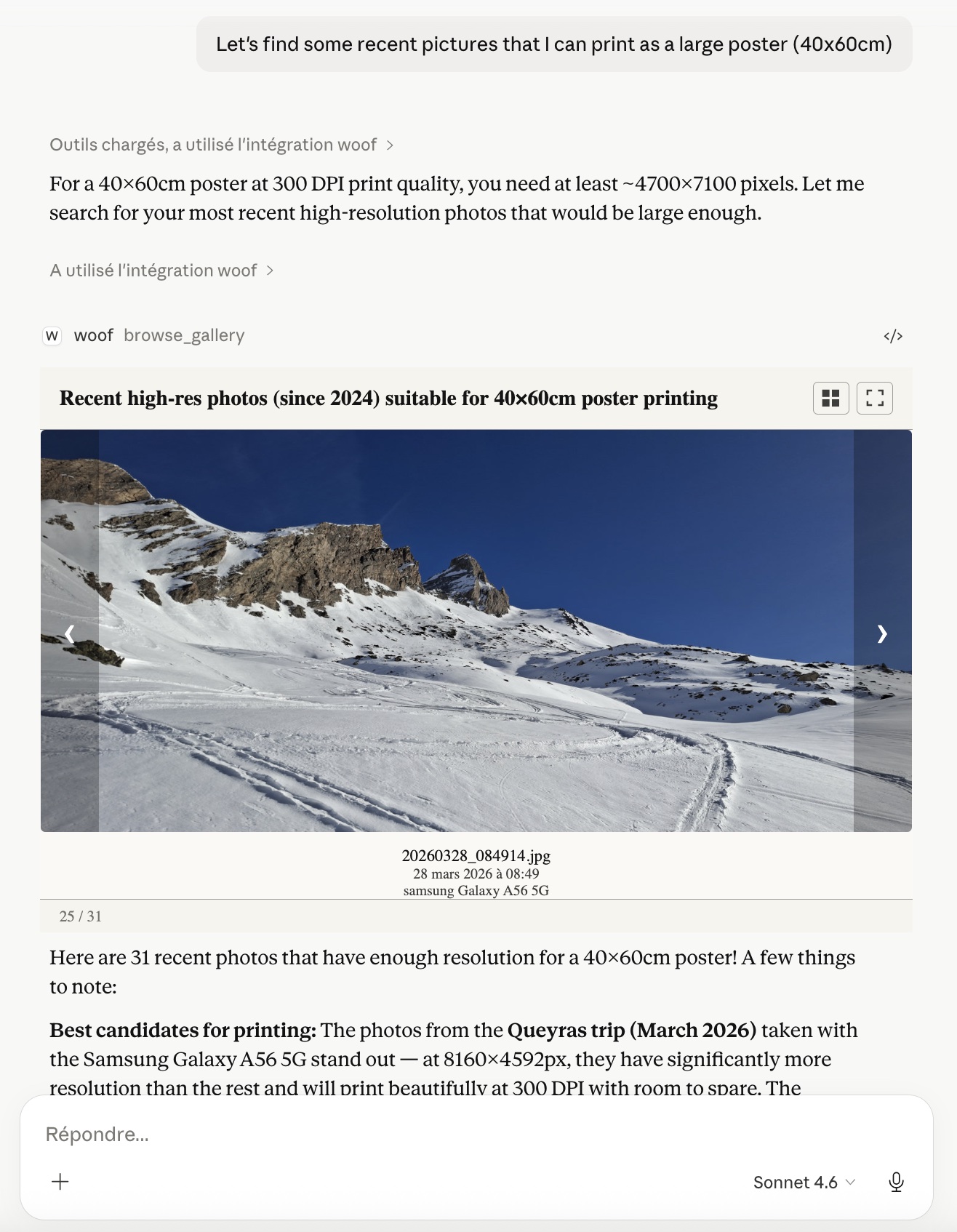
<p>Now that photos are sorted in folders and contain context information, how are they accessed and explored? This is provided by the search and browse capabilities of a photo gallery. Search is selecting the best matching picture using metadata; it might combine several metadata fields and eventually sorts the results by relevance and the requested field. Browsing the gallery is essential for visual content like photos. It often comes as a grid following the query results, but it can also use other displays such as a geographic map. Claude does not provide those skills, or provides them poorly: search would probably mean a traversal of all the photos; browse is through the system preview app.</p>

<p>To overcome those limits of Claude, we have created a companion app, <a href="https://github.com/ouestcharlie/ouestcharlie-woof">OuEstCharlie Woof</a>. Woof is extending Claude by providing instant search on folder names and photo metadata (from headers). It also augments Claude’s user interface with grid or single-photo display. The user experience stays consistent with Claude: chat with the AI; it translates your intent into queries to Woof, and displays the result.</p>

<p>Woof is installed as a local Claude connector via a small package bundle. Here are <a href="/2026/05/13/claude-how-to-step-by-step/">the step-by-step install instructions</a>.</p>

<p>Once Woof is installed, the first step is the configuration of the gallery root folder:</p>

<blockquote>
  <p>Can you create an OuEstCharlie Woof library for this folder?</p>
</blockquote>

<p>Claude will probably suggest the next logical step: index the library. This step is necessary to gather the metadata, and prepare the thumbnails such that search and browse are fast and pleasant.</p>

<p>Once the progress bar of the indexing reaches 100%, you may start the gallery exploration.</p>

<h2 id="wrap-up">Wrap-up</h2>

<p>With this tutorial, we have shown how to create a photo gallery from end to end in Claude Desktop CoWork. The gains are quite impressive compared to legacy systems:</p>
<ul>
  <li>Photos are sorted, and could be enriched, with the Strava activity log for context. The AI not only matches the photos and activities but also finds missing information and inconsistencies. Scripting this process and all the exceptions would require quite complex rules.</li>
  <li>Search also benefits from the AI. Your requests are in natural language in the chat. The AI interprets and finds the best matching pictures using all available information fields.</li>
</ul>

<p>OuEstCharlie Woof is the companion app extending Claude for photo search and browsing without breaking the user experience. Today, as discussed in the post <a href="/2026/07/10/Woof-is-different-to-other-mcp-servers/">“Woof is different from other MCP servers”</a>, most photo gallery integrations with Claude only wrap actions like search or album creation; the photos are at best shared with Claude one by one.</p>]]></content><author><name>(c) Antoine Hue</name></author><category term="tutorial" /><category term="MacOs" /><category term="Linux" /><category term="Windows" /><summary type="html"><![CDATA[Personal photo galleries are a great asset; they gather and keep many memories of our life. However, creating and managing one is also a challenge and consumes time. Digital photos have not changed much from the old paper photo albums: we must sort photos in albums or their digital equivalent (tags, smart albums), add captions, and name the people. We got accustomed to delegating this to packaged services like Google or Apple photo applications, but then we get dependent on those: the metadata is created there and remains there.]]></summary><media:thumbnail xmlns:media="http://search.yahoo.com/mrss/" url="https://ouestcharlie.github.io/assets/Claude+Strava+Woof/CreateYourPhotoGallery_ClaudeStravaWoof-Cover.jpg" /><media:content medium="image" url="https://ouestcharlie.github.io/assets/Claude+Strava+Woof/CreateYourPhotoGallery_ClaudeStravaWoof-Cover.jpg" xmlns:media="http://search.yahoo.com/mrss/" /></entry><entry><title type="html">Woof Is Different From Other Photo MCP Servers</title><link href="https://ouestcharlie.github.io/2026/07/10/Woof-is-different-to-other-mcp-servers/" rel="alternate" type="text/html" title="Woof Is Different From Other Photo MCP Servers" /><published>2026-07-10T00:00:00+00:00</published><updated>2026-07-10T00:00:00+00:00</updated><id>https://ouestcharlie.github.io/2026/07/10/Woof-is-different-to-other-mcp-servers</id><content type="html" xml:base="https://ouestcharlie.github.io/2026/07/10/Woof-is-different-to-other-mcp-servers/"><![CDATA[<p>You can already ask an AI assistant to “find my photos from Spain.” Most photo MCP servers either stop there — you get a list of filenames or paths back as text — or you have to switch to another app to actually look at anything. What sets Woof apart is what happens the moment after the search: you <em>see</em> your photos, browse them, flip through them, without ever leaving the conversation.</p>

<hr />

<h2 id="the-landscape-today">The Landscape Today</h2>

<p>As of today, none of Apple, Google, Microsoft, or Amazon has released an official MCP server for their own photo product — not Photos, not Google Photos, not OneDrive, not Amazon Photos (see <strong>References</strong> below).</p>

<p>That leaves a handful of community projects, each solving a different slice of the problem:</p>

<ul>
  <li><strong><a href="https://github.com/drolosoft/immich-photo-manager">drolosoft/immich-photo-manager</a></strong> — CLIP-based natural-language search over a self-hosted Immich library, plus geographic and temporal album curation. Notably, it <em>does</em> produce a browsable surface: on request, it generates a self-contained HTML page with embedded thumbnails — closer to Woof than most competitors, but it’s a file you open separately, not a view rendered live inside the conversation.</li>
  <li><strong><a href="https://github.com/barryw/ImmichMCP">barryw/ImmichMCP</a></strong> — the same Immich backend, with CLIP semantic search and structured metadata filters, but results come back as JSON with thumbnail/download URLs only. No gallery generation — you or your client has to render them.</li>
  <li><strong><a href="https://github.com/sweetrb/apple-photos-mcp">sweetrb/apple-photos-mcp</a></strong> — queries the macOS Photos library directly via <code class="language-plaintext highlighter-rouge">osxphotos</code>. Search is structured filters only — date range, album, keyword, person, favorite/hidden, title/description substring — no semantic or visual search. It’s fully local with no credentials of any kind, but viewing a photo still means opening it in Photos.app or exporting it to disk.</li>
  <li><strong><a href="https://github.com/savethepolarbears/google-photos-mcp">savethepolarbears/google-photos-mcp</a></strong> — broader than pure metadata filtering: a genuine text search against the Google Photos API (leaning on Google’s own backend categorization), plus structured filters and location search. It also ships a Picker API flow that opens <em>your browser</em> to Google’s own picker UI — a real browsing surface, just not one rendered inside the AI conversation. And it requires a Google Cloud OAuth client ID and secret, plus a full consent flow, before any of it works.</li>
</ul>

<p>None of them render a live, interactive photo gallery inside the AI conversation itself. The closest is immich-photo-manager’s generated HTML gallery — and even that’s a separate artifact, not something rendered live where you’re chatting.</p>

<h3 id="how-they-stack-up">How they stack up</h3>

<table>
  <thead>
    <tr>
      <th>MCP server</th>
      <th>Search</th>
      <th>Browse in-chat</th>
      <th>No credential sharing</th>
      <th>Metadata editing</th>
    </tr>
  </thead>
  <tbody>
    <tr>
      <td><strong>Woof</strong></td>
      <td>🟡 Full-text search on description + structured facets</td>
      <td>✅ Inline MCP App (grid/carousel/full-screen), rendered live in the conversation</td>
      <td>✅ Local-only, STDIO</td>
      <td>❌ Read-only, index-and-search only</td>
    </tr>
    <tr>
      <td>drolosoft/immich-photo-manager</td>
      <td>✅ Semantic (CLIP) + facets (geo/temporal)</td>
      <td>🟡 Generates a separate HTML gallery page, not inline</td>
      <td>❌ Immich instance API key</td>
      <td>✅ Tags, bulk rotation, metadata repair (timestamps/GPS/timezone), trash/delete/restore, face merge</td>
    </tr>
    <tr>
      <td>barryw/ImmichMCP</td>
      <td>✅ Semantic (CLIP) + facets</td>
      <td>❌ JSON + URLs only, no gallery</td>
      <td>❌ Immich instance API key</td>
      <td>✅ Asset metadata update, full album/tag CRUD, people update/merge, comments/likes</td>
    </tr>
    <tr>
      <td>sweetrb/apple-photos-mcp</td>
      <td>Structured facets (date/album/keyword/person)</td>
      <td>❌ JSON only, view in Photos.app or export</td>
      <td>✅ Local-only, no credentials</td>
      <td>❌ Explicitly read-only against the library, export-only</td>
    </tr>
    <tr>
      <td>savethepolarbears/google-photos-mcp</td>
      <td>✅ Text search + structured facets</td>
      <td>🟡 Picker API opens Google’s picker in the browser, not inline</td>
      <td>❌ Google OAuth client ID/secret</td>
      <td>🟡 Album create/upload/cover + album-level enrichment only, no per-photo rating/tag/caption</td>
    </tr>
  </tbody>
</table>

<p>A note on that last column: the two Immich-backed servers need an API key for the user’s <strong>own self-hosted</strong> Immich instance — a smaller trust boundary than handing OAuth credentials to a third-party cloud API, even though both count as “a credential the MCP server holds.”</p>

<p>Woof can combine many facets (date, rating, dimensions, orientation, tags, GPS, camera make/model/lens, ISO/aperture/shutter/focal length) and textual description. What it doesn’t have yet is CLIP-style <em>visual</em> semantic search: finding a photo because it looks like a sunset, not because the word “sunset” appears somewhere in its tags or description. More on that below.</p>

<hr />

<h2 id="search-and-browse-in-one-place">Search and Browse, in One Place</h2>

<p>Woof’s gallery is an MCP App — an interactive view rendered directly inside the Claude conversation. Ask “show me the beach trip from 2024,” and a live grid appears that you can scroll, switch to carousel, or open full-screen — all inline, with no context switch to another application. That’s the core of what makes Woof different: not a smarter query, but not losing the thread when you go to actually look at the results.</p>

<video controls="" width="100%" poster="/assets/screenshot_2026-07-10.jpg">
  <source src="/assets/Woof_Search_Browse_2026-07-10.mp4" type="video/mp4" />
</video>

<h2 id="refining-what-youre-looking-at">Refining What You’re Looking At</h2>

<p>Because search and browsing live in the same surface, you can narrow, broaden, or pivot the query conversationally while looking at what’s on screen: “now just the ones with Mia,” “zoom into that one,” “go back a week.” Competitors whose tool response is text can’t support this — there’s nothing on screen to point at.</p>

<h2 id="a-crowd-of-agents-behind-one-experience">A Crowd of Agents Behind One Experience</h2>

<p>Under the hood, Woof mediates a set of stateless agents — Wally handles query and browse, Whitebeard handles ingestion — behind this single conversational surface. That means the search-and-browse experience can keep growing (enrichment, memories, more agents) without the whole system becoming a monolith.</p>

<h2 id="no-credential-sharing">No Credential Sharing</h2>

<p>Several competitors require handing the MCP server a credential: Google Photos MCP needs a Google Cloud OAuth client ID and secret plus a full consent flow; the two Immich-backed servers need an API key for your Immich instance (a smaller trust boundary, since that’s usually self-hosted, but still a credential the process holds). Woof is local-only — there are no API keys to generate, share, or revoke. The assistant talks to a local MCP server over STDIO, and there’s no credential to leak because none exists.</p>

<h2 id="your-metadata-stays-yours">Your Metadata Stays Yours</h2>

<p>Every fact Woof learns about a photo — tags, ratings, description, GPS, camera settings — is written to an <a href="https://en.wikipedia.org/wiki/Extensible_Metadata_Platform">XMP sidecar</a> next to the original file, an open ISO standard that Lightroom, Darktable, and ExifTool can all read. The LanceDB index that powers search is just a local, rebuildable cache derived from those sidecars — not a proprietary database holding the only copy. Stop using Woof, and your metadata doesn’t disappear with it: it’s already sitting on your drive, in a format any tool can open.</p>

<h2 id="where-woof-still-trails">Where Woof Still Trails</h2>

<p>Woof V1 only supports local and mounted drives. Competitors already run against a real, hosted or self-hosted multi-user server — a legitimate advantage if your library lives there.</p>

<p>While Woof’s structured facets and full-text description search cover a lot of ground, it isn’t CLIP-style visual semantic search. “Sunset at the beach” only finds something if that language shows up in a tag, a keyword, or the description — most competitors search the actual pixel content of the photo.</p>

<p>Also, Woof is not editing the metadata yet: rating, commenting, grouping into albums of tags.</p>

<h2 id="whats-next">What’s Next</h2>

<p>Woof optimizes the <em>experience</em> of asking and then looking — search and browsing unified in one conversation, instead of a query that dumps you into a separate app to see the results. Backend breadth and visual semantic search are on the roadmap, not solved yet.</p>

<hr />

<h2 id="try-it-today">Try It Today</h2>

<p align="center"><img src="/assets/woof_large_850.png" alt="Woof" height="200" /></p>

<p><strong><a href="https://github.com/ouestcharlie/ouestcharlie-woof">Woof</a></strong> — the MCP app for OuEstCharlie — is available now as an early preview. Here is how to go from zero to browsing your library in three steps.</p>

<h3 id="step-1--install-woof">Step 1 — Install Woof</h3>

<p>The easiest path is a single double-click. Download the latest <a href="https://github.com/ouestcharlie/ouestcharlie-woof/releases/download/v0.15.2/ouestcharlie-woof-0.15.2.mcpb">ouestcharlie-woof-0.15.2.mcpb</a> and open it. Claude Desktop will prompt you to install Woof in one click — no configuration file to edit, no terminal required.</p>

<p>If you prefer a manual setup or use a different AI client (ChatGPT Desktop, Goose, VS Code Copilot), add Woof via <code class="language-plaintext highlighter-rouge">uvx</code>:</p>

<div class="language-json highlighter-rouge"><div class="highlight"><pre class="highlight"><code><span class="p">{</span><span class="w">
  </span><span class="nl">"mcpServers"</span><span class="p">:</span><span class="w"> </span><span class="p">{</span><span class="w">
    </span><span class="nl">"woof"</span><span class="p">:</span><span class="w"> </span><span class="p">{</span><span class="w">
      </span><span class="nl">"command"</span><span class="p">:</span><span class="w"> </span><span class="s2">"uvx"</span><span class="p">,</span><span class="w">
      </span><span class="nl">"args"</span><span class="p">:</span><span class="w"> </span><span class="p">[</span><span class="s2">"--python"</span><span class="p">,</span><span class="w"> </span><span class="s2">"3.14"</span><span class="p">,</span><span class="w"> </span><span class="s2">"--from"</span><span class="p">,</span><span class="w"> </span><span class="s2">"ouestcharlie-woof"</span><span class="p">,</span><span class="w"> </span><span class="s2">"woof-bridge"</span><span class="p">]</span><span class="w">
    </span><span class="p">}</span><span class="w">
  </span><span class="p">}</span><span class="w">
</span><span class="p">}</span><span class="w">
</span></code></pre></div></div>

<h3 id="step-2--point-woof-at-your-photos">Step 2 — Point Woof at your photos</h3>

<p>Once Woof is connected, tell your AI assistant where your photos live:</p>

<blockquote>
  <p><em>“Add a local library to Woof pointing to /Users/your-name/Pictures”</em></p>
</blockquote>

<p>Then kick off indexing:</p>

<blockquote>
  <p><em>“Index my local library”</em></p>
</blockquote>

<p>Woof reads your library as-is — no migration, no reorganization. It writes XMP sidecar files next to your originals (never touching the originals themselves) and builds a fast metadata index. Expect roughly 10–100 seconds per thousand photos.</p>

<h3 id="step-3--start-searching">Step 3 — Start searching</h3>

<p>Once indexing is done, your library is fully accessible through natural conversation:</p>

<blockquote>
  <p><em>“Show me photos from last July”</em></p>
</blockquote>

<blockquote>
  <p><em>“Pictures taken near Paris”</em></p>
</blockquote>

<blockquote>
  <p><em>“How many photos do I have?”</em></p>
</blockquote>

<p>The gallery panel appears inline in your conversation with matching results. Your photos never leave your machine — only metadata and thumbnails travel to the AI assistant.</p>

<p><strong>V1 supports local filesystems on macOS, Linux, and Windows</strong>, including folders synced from iCloud Drive, OneDrive, or Google Drive as long as files are locally available. Native cloud storage is on the roadmap for V2.</p>

<p><a href="https://github.com/ouestcharlie/ouestcharlie-woof">Get Woof on GitHub</a> — see the <a href="https://github.com/ouestcharlie/ouestcharlie-woof#readme">README</a> for full install and usage details.</p>

<p align="center"><img src="/assets/screenshot_2026-04-11.jpg" alt="Woof photo gallery in Claude Desktop" height="600" /></p>

<h2 id="if-it-does-not-work">If it does not work</h2>

<p>First check the <a href="/2026/05/13/claude-how-to-step-by-step/">step by step install guide</a>.</p>

<p>If your problem remains unsolved after going through this guide, please <a href="https://github.com/ouestcharlie/ouestcharlie-woof/issues">file an issue on the Woof GitHub repository</a> — include the logs above and a description of what you tried.</p>

<hr />

<h2 id="references">References</h2>

<ul>
  <li><a href="https://cloud.google.com/blog/products/ai-machine-learning/announcing-official-mcp-support-for-google-services">Google’s official MCP servers</a> cover Workspace and Cloud services, not Google Photos.</li>
  <li><a href="https://thenewstack.io/safari-mcp-platform-infrastructure/">Apple’s official MCP servers</a> are Safari/WebKit developer tools, not Photos.</li>
  <li><a href="https://github.com/microsoft/mcp">Microsoft ships an official OneDrive/SharePoint MCP server</a>, but it’s general file management, not a photo-specific search-and-browse surface.</li>
  <li>AWS’s <a href="https://awslabs.github.io/mcp/">official MCP servers</a> are cloud infrastructure — nothing for Amazon Photos.</li>
</ul>

<p>Metadata-editing capabilities (see the comparison table above) are drawn from the same READMEs already linked in <strong>The Landscape Today</strong>: drolosoft/immich-photo-manager’s “Highlights” section (tags, bulk rotation, metadata repair, trash lifecycle, face merge), barryw/ImmichMCP’s Albums/People/Tags/Activities tool tables, sweetrb/apple-photos-mcp’s explicit “Read-only against the Photos library” banner, and savethepolarbears/google-photos-mcp’s “Write operations” list (album-level only, no per-photo fields).</p>]]></content><author><name>(c) Antoine Hue</name></author><category term="comparison" /><summary type="html"><![CDATA[You can already ask an AI assistant to “find my photos from Spain.” Most photo MCP servers either stop there — you get a list of filenames or paths back as text — or you have to switch to another app to actually look at anything. What sets Woof apart is what happens the moment after the search: you see your photos, browse them, flip through them, without ever leaving the conversation.]]></summary><media:thumbnail xmlns:media="http://search.yahoo.com/mrss/" url="https://ouestcharlie.github.io/assets/screenshot_2026-07-10.jpg" /><media:content medium="image" url="https://ouestcharlie.github.io/assets/screenshot_2026-07-10.jpg" xmlns:media="http://search.yahoo.com/mrss/" /></entry><entry><title type="html">Step by Step Install of OuEstCharlie Woof in Claude Desktop</title><link href="https://ouestcharlie.github.io/2026/05/13/claude-how-to-step-by-step/" rel="alternate" type="text/html" title="Step by Step Install of OuEstCharlie Woof in Claude Desktop" /><published>2026-05-13T00:00:00+00:00</published><updated>2026-05-13T00:00:00+00:00</updated><id>https://ouestcharlie.github.io/2026/05/13/claude-how-to-step-by-step</id><content type="html" xml:base="https://ouestcharlie.github.io/2026/05/13/claude-how-to-step-by-step/"><![CDATA[<p><a href="https://github.com/ouestcharlie/ouestcharlie-woof/">Woof</a> is the frontend to OuEstCharlie, a modern photo gallery integrated into Claude Desktop (and other AI assistants). Woof is an MCP app: it acts both as a connector between your photo library and Claude, and as a user interface for browsing photos. Metadata flows through Claude while gallery and photo files remain local to your machine.</p>

<h2 id="security">Security</h2>

<p>Woof is a local MCP server connected to Claude via the STDIO protocol. This means:</p>
<ul>
  <li>Claude launches and stops Woof</li>
  <li>No specific authentication is required, since both application processes are coupled</li>
</ul>

<p>Woof uses Python for the server, JavaScript for the gallery frontend, and Rust for image processing. Security of the code and dependencies is continuously checked by GitHub. You can check the current status on the <a href="https://github.com/ouestcharlie/ouestcharlie-woof/security/dependabot">security page of Woof</a>.</p>

<h2 id="pre-requisites">Pre-requisites</h2>

<p>You need to <a href="https://support.claude.com/en/articles/10065433-install-claude-desktop">install Claude Desktop on your machine</a>. OuEstCharlie Woof is not compatible with the web version of Claude.</p>

<p>Woof is installed by the <a href="https://docs.astral.sh/uv/">uv</a> Python package manager, which is normally bundled with Claude Desktop. If you run into issues, see the Troubleshooting section below.</p>

<p>System prerequisites (all install options):</p>
<ul>
  <li><strong>macOS</strong>: <code class="language-plaintext highlighter-rouge">brew install inih brotli gettext</code> (required by pyexiv2 at runtime)</li>
  <li><strong>Linux/Windows</strong>: no extra steps</li>
</ul>

<h2 id="install-woof-in-claude">Install Woof in Claude</h2>

<p>The simplest way to install Woof is through the MCP bundle included in the <a href="https://github.com/ouestcharlie/ouestcharlie-woof/releases">Woof releases</a>: download the latest <a href="https://github.com/ouestcharlie/ouestcharlie-woof/releases/download/v0.15.2/ouestcharlie-woof-0.15.2.mcpb">ouestcharlie-woof-0.15.2.mcpb</a>.</p>

<blockquote>
  <p>Double-click on the downloaded MCP bundle  will fail in latest versions of Claude</p>
</blockquote>

<p>If double-clicking the <code class="language-plaintext highlighter-rouge">ouestcharlie-woof-x.y.z.mcpb</code> file does not open Claude, you can install it directly from the Claude Desktop settings by clicking the <strong>Extensions</strong> tab:</p>

<p align="center">
  <img src="/assets/ClaudeHowTo/021.png" alt="Select Extension in Claude Desktop Settings" max-height="600" /><br />
  <em>Select Extension in Claude Desktop Settings</em>
</p>

<p>Enable <strong>Advanced Settings</strong>, then click <strong>Install Extension</strong>. In the file browser dialog, select the <code class="language-plaintext highlighter-rouge">ouestcharlie-woof-x.y.z.mcpb</code> file and follow the install steps described above.</p>

<p align="center">
  <img src="/assets/ClaudeHowTo/022.png" alt="Install Extension in Claude Desktop Settings" max-height="600" /><br />
  <em>Install Extension in Claude Desktop Settings</em>
</p>

<!--
<p align="center">
  <img src="/assets/ClaudeHowTo/001.png" alt="Open the Woof MCP bundle in Claude Desktop" max-height="600"><br>
  <em>Open the Woof MCP bundle in Claude Desktop</em>
</p>


If Claude is not launched by the double-click, see the section "Alternate bundle install from the Claude settings" below.

Review the dialog and confirm the install by clicking **Install**.
-->

<p>A second confirmation step is required:</p>

<p align="center">
  <img src="/assets/ClaudeHowTo/002.png" alt="Validate Woof install in Claude Desktop" max-height="600" /><br />
  <em>Validate Woof install in Claude Desktop</em>
</p>

<p>Once successful, the Woof extension appears as enabled:</p>

<p align="center">
  <img src="/assets/ClaudeHowTo/003.png" alt="Woof extension is enabled in Claude Desktop" max-height="600" /><br />
  <em>Woof extension is enabled in Claude Desktop</em>
</p>

<h2 id="first-steps-in-claude-desktop">First steps in Claude Desktop</h2>

<p>You can verify that Woof is correctly installed by asking Claude: “Is OuEstCharlie Woof loaded?” Claude may ask you to authorize listing libraries — see below for details.</p>

<p align="center">
  <img src="/assets/ClaudeHowTo/010.png" alt="Check if Woof is loaded in Claude Desktop" max-height="600" /><br />
  <em>Check if Woof is loaded in Claude Desktop</em>
</p>

<p>Before searching and browsing photos, you need to point Woof to your photo library. This is done by creating a <strong>library</strong>, which consists of a nickname and the path to your photo library on your local drive.</p>

<p align="center">
  <img src="/assets/ClaudeHowTo/011.png" alt="Define a Woof library in Claude Desktop" max-height="600" /><br />
  <em>Define a Woof library in Claude Desktop</em>
</p>

<p>Supported drive types are:</p>
<ul>
  <li><em>filesystem</em>: any local or local-area network drive</li>
  <li><em>cloud_mounted</em>: cloud drives such as iCloud, Google Drive, OneDrive, or kDrive</li>
</ul>

<blockquote>
  <p>Cloud-mounted drives may cause issues if photo files are “dehydrated” (i.e. their content is not immediately available locally). The workaround is to download the files before indexing the library.</p>
</blockquote>

<p>Creating a library will require your confirmation.</p>

<blockquote>
  <p>It is recommended to allow only once for commands that modify your drive — such as <em>create library</em> and <em>index library</em>. For read-only commands like <em>list libraries</em>, <em>list search fields</em>, <em>search</em>, or <em>browse</em>, you can allow permanently.</p>
</blockquote>

<p align="center">
  <img src="/assets/ClaudeHowTo/012.png" alt="Allow creation of a Woof library in Claude Desktop" max-height="600" /><br />
  <em>Allow creation of a Woof library in Claude Desktop</em>
</p>

<p>Once the library has been added, the next step is to index its contents. Indexing extracts metadata (date, GPS location, dimensions, tags, etc.) and generates optimized thumbnails. Depending on library size, drive throughput, and machine performance, this may take several minutes. Typical indexing speed is 500–1,500 photos/min.</p>

<p align="center">
  <img src="/assets/ClaudeHowTo/013.png" alt="Trigger library index in Claude Desktop" max-height="600" /><br />
  <em>Trigger library index in Claude Desktop</em>
</p>

<p>On macOS, an additional permission prompt may appear:</p>

<p align="center">
  <img src="/assets/ClaudeHowTo/014.png" alt="Allow Woof to access document files in Claude Desktop" max-height="600" /><br />
  <em>Allow Woof to access document files in Claude Desktop</em>
</p>

<p>While indexing is running, a progress bar is shown as well as details of the last indexed partitions. When indexing is complete, the UI displays a summary of the library and the indexing results:</p>

<p align="center">
  <img src="/assets/ClaudeHowTo/015b.jpg" alt="Indexing summary in Claude Desktop" max-height="600" /><br />
  <em>Indexing summary in Claude Desktop</em>
</p>

<p>Claude and Woof are ready to start photo search and browsing.</p>

<h2 id="first-search">First search</h2>

<p>You can now search and browse your library using Claude’s prompt for queries, and the Woof UI to explore results — either inline in the chat or in full-screen:</p>

<p align="center">
  <img src="/assets/ClaudeHowTo/016.png" alt="Search and Browse using Woof in Claude Desktop" max-height="600" /><br />
  <em>Search and Browse using Woof in Claude Desktop</em>
</p>

<hr />

<h2 id="alternative-to-bundle-install-in-claude-desktop">Alternative to bundle install in Claude Desktop</h2>

<p>If install based on the bundle (.mcpb file) fails, you will need to edit the developer configuration as explained in the <a href="/2026/04/01/ouestcharlie-woof-install-first-steps/#option-b--manual-uvx-configuration">How to install and first steps with Woof</a>.</p>

<h2 id="troubleshooting">Troubleshooting</h2>

<p>If Claude is unable to use the Woof MCP tools, inspect the logs. From <strong>Settings → Developer</strong>, select the Woof logs. A successful install should produce output similar to this screenshot:</p>

<p align="center">
  <img src="/assets/ClaudeHowTo/031.png" alt="Woof install logs in Claude Desktop" max-height="600" /><br />
  <em>Woof install logs in Claude Desktop</em>
</p>

<p>If your problem remains unsolved after going through this guide, please <a href="https://github.com/ouestcharlie/ouestcharlie-woof/issues">file an issue on the Woof GitHub repository</a> — include the logs above and a description of what you tried.</p>]]></content><author><name>(c) Antoine Hue</name></author><category term="howto" /><summary type="html"><![CDATA[Woof is the frontend to OuEstCharlie, a modern photo gallery integrated into Claude Desktop (and other AI assistants). Woof is an MCP app: it acts both as a connector between your photo library and Claude, and as a user interface for browsing photos. Metadata flows through Claude while gallery and photo files remain local to your machine.]]></summary><media:thumbnail xmlns:media="http://search.yahoo.com/mrss/" url="https://ouestcharlie.github.io/assets/ClaudeHowTo/016.png" /><media:content medium="image" url="https://ouestcharlie.github.io/assets/ClaudeHowTo/016.png" xmlns:media="http://search.yahoo.com/mrss/" /></entry><entry><title type="html">Why It’s Time to Move Past iPhoto, Google Photos, and OneDrive</title><link href="https://ouestcharlie.github.io/2026/04/10/why-we-need-to-move-past-gallery-apps/" rel="alternate" type="text/html" title="Why It’s Time to Move Past iPhoto, Google Photos, and OneDrive" /><published>2026-04-10T00:00:00+00:00</published><updated>2026-07-10T00:00:00+00:00</updated><id>https://ouestcharlie.github.io/2026/04/10/why-we-need-to-move-past-gallery-apps</id><content type="html" xml:base="https://ouestcharlie.github.io/2026/04/10/why-we-need-to-move-past-gallery-apps/"><![CDATA[<p>You have thousands of photos. Memories of trips, birthdays, ordinary Tuesdays that somehow became extraordinary. You trusted an app to keep them organized — and it did, for a while. Then one day you decided to switch. And everything was gone.</p>

<p>Not the photos themselves. The <em>meaning</em> you had layered on top of them.</p>

<hr />

<h2 id="the-lock-in-you-never-signed-up-for">The Lock-in You Never Signed Up For</h2>

<p>Every major photo app — iPhoto, Google Photos, Amazon Photos, OneDrive’s photo gallery — shares the same fundamental flaw: your enrichments live inside their proprietary system, not with your photos.</p>

<p><strong>Albums, face recognition, comments, ratings, captions.</strong> All of it lives in a database you cannot see, cannot export in any useful form, and will lose the moment you switch providers or they decide to change their terms.</p>

<p>Have you ever tried migrating from Google Photos to Apple iPhoto — or the other way around? You can export the raw image files. But your albums come back as flat folders with mangled names. Your face groups are gone. Your carefully written captions vanish. The ratings you spent years applying disappear.</p>

<p>You didn’t lose your photos. You lost your <em>library</em>.</p>

<p>This is not an accident. Keeping your enrichments locked inside their format is how these platforms retain users. Your own curation becomes a switching cost they impose on you.</p>

<hr />

<h2 id="extensibility-a-door-that-was-never-opened">Extensibility: A Door That Was Never Opened</h2>

<p>Beyond lock-in, there is a deeper problem: you can only do what the platform allows.</p>

<p>Want to tag photos by the lens you used, or by the mood of the shot? Not supported. Want to run your own face recognition model — perhaps one that works better for your family, or that respects your privacy requirements? Impossible. Want to call a third-party service to generate detailed scene descriptions, or to detect specific objects? You cannot.</p>

<p>These platforms embed AI deeply into their products, but only <em>their</em> AI, serving <em>their</em> purposes. You are a consumer of their intelligence, not an owner of yours.</p>

<p>The enrichment capabilities these apps provide — face grouping, scene detection, search — are genuinely useful. But you have no way to extend them, replace them, or combine them with tools that might serve you better.</p>

<hr />

<h2 id="ai-is-in-your-photos-app-but-not-in-your-ai-tools">AI Is in Your Photos App, But Not in Your AI Tools</h2>

<p>Here is the sharpest irony of the current landscape.</p>

<p>The same period that saw AI assistants become genuinely useful — capable of answering questions, writing code, planning trips, analyzing documents — also saw photo management remain completely siloed from that intelligence.</p>

<p>Your AI assistant cannot browse your photo library. It cannot answer “show me all the photos from my trip to Lisbon in 2023” unless you manually upload files. It cannot help you build an album, surface a memory, or run a custom enrichment pipeline. The photos sit in one app; the intelligence lives in another; and the two never meet.</p>

<p>This is not a technical limitation. It is an architectural one. Existing gallery apps were not designed to be integrated. They are closed systems that happen to use AI internally, but expose nothing to the outside world.</p>

<hr />

<h2 id="a-different-starting-point">A Different Starting Point</h2>

<p><strong>OuEstCharlie</strong> begins from a different set of assumptions.</p>

<p><strong>Open standards, not proprietary databases.</strong> Every piece of metadata — face tags, album membership, captions, ratings, enrichments — is stored in <a href="https://en.wikipedia.org/wiki/Extensible_Metadata_Platform">XMP sidecars</a>, an ISO standard (ISO 16684) that lives next to your photos as plain files. Lightroom can read it. Darktable can read it. ExifTool can read it. If you stop using OuEstCharlie tomorrow, your metadata is still there, in a format that will outlast any single application.</p>

<p><strong>Built for AI integration from day one.</strong> OuEstCharlie is designed around the <a href="https://modelcontextprotocol.io/">Model Context Protocol (MCP)</a>, the emerging standard for connecting AI assistants to external tools and data sources. Your photo library becomes a first-class capability that any MCP-compatible AI host — Claude Desktop, and others — can query, browse, and reason over. The AI is not embedded in the app; the app is embedded in the AI.</p>

<p><strong>Extensibility through agents.</strong> Enrichment is not a fixed feature set — it is an open pipeline. Want to run a custom face recognition model? Write an agent. Want to call a third-party tagging service, or build your own? Write an agent. OuEstCharlie’s agent model means the system grows with what you need, not what a product team decided to ship.</p>

<p><strong>Privacy preserved.</strong> Because the metadata lives with your files — on your drive, on storage you control — there is no mandatory upload to a cloud service to make enrichment work. Agents run where you choose to run them. Your photos are not the product.</p>

<hr />

<p>The problem with today’s gallery apps is not that they do too little. It is that they do everything inside a box they own, and when you want to leave — or when you want to go further — the walls close in.</p>

<p>There is a better model. It starts with your data being yours: open, portable, readable by the tools you choose. And it ends with your photos being a living part of how you interact with AI — not a separate silo that AI cannot reach.</p>

<p>That is what OuEstCharlie is building.</p>

<hr />

<h2 id="try-it-today">Try It Today</h2>

<p align="center"><img src="/assets/woof_large_850.png" alt="Woof" height="200" /></p>

<p><strong><a href="https://github.com/ouestcharlie/ouestcharlie-woof">Woof</a></strong> — the MCP app for OuEstCharlie — is available now as an early preview. Here is how to go from zero to browsing your library in three steps.</p>

<h3 id="step-1--install-woof">Step 1 — Install Woof</h3>

<p>The easiest path is a single double-click. Download the latest <a href="https://github.com/ouestcharlie/ouestcharlie-woof/releases/download/v0.15.2/ouestcharlie-woof-0.15.2.mcpb">ouestcharlie-woof-0.15.2.mcpb</a> and open it. Claude Desktop will prompt you to install Woof in one click — no configuration file to edit, no terminal required.</p>

<p>If you prefer a manual setup or use a different AI client (ChatGPT Desktop, Goose, VS Code Copilot), add Woof via <code class="language-plaintext highlighter-rouge">uvx</code>:</p>

<div class="language-json highlighter-rouge"><div class="highlight"><pre class="highlight"><code><span class="p">{</span><span class="w">
  </span><span class="nl">"mcpServers"</span><span class="p">:</span><span class="w"> </span><span class="p">{</span><span class="w">
    </span><span class="nl">"woof"</span><span class="p">:</span><span class="w"> </span><span class="p">{</span><span class="w">
      </span><span class="nl">"command"</span><span class="p">:</span><span class="w"> </span><span class="s2">"uvx"</span><span class="p">,</span><span class="w">
      </span><span class="nl">"args"</span><span class="p">:</span><span class="w"> </span><span class="p">[</span><span class="s2">"--python"</span><span class="p">,</span><span class="w"> </span><span class="s2">"3.14"</span><span class="p">,</span><span class="w"> </span><span class="s2">"--from"</span><span class="p">,</span><span class="w"> </span><span class="s2">"ouestcharlie-woof"</span><span class="p">,</span><span class="w"> </span><span class="s2">"woof-bridge"</span><span class="p">]</span><span class="w">
    </span><span class="p">}</span><span class="w">
  </span><span class="p">}</span><span class="w">
</span><span class="p">}</span><span class="w">
</span></code></pre></div></div>

<h3 id="step-2--point-woof-at-your-photos">Step 2 — Point Woof at your photos</h3>

<p>Once Woof is connected, tell your AI assistant where your photos live:</p>

<blockquote>
  <p><em>“Add a local library to Woof pointing to /Users/your-name/Pictures”</em></p>
</blockquote>

<p>Then kick off indexing:</p>

<blockquote>
  <p><em>“Index my local library”</em></p>
</blockquote>

<p>Woof reads your library as-is — no migration, no reorganization. It writes XMP sidecar files next to your originals (never touching the originals themselves) and builds a fast metadata index. Expect roughly 10–100 seconds per thousand photos.</p>

<h3 id="step-3--start-searching">Step 3 — Start searching</h3>

<p>Once indexing is done, your library is fully accessible through natural conversation:</p>

<blockquote>
  <p><em>“Show me photos from last July”</em></p>
</blockquote>

<blockquote>
  <p><em>“Pictures taken near Paris”</em></p>
</blockquote>

<blockquote>
  <p><em>“How many photos do I have?”</em></p>
</blockquote>

<p>The gallery panel appears inline in your conversation with matching results. Your photos never leave your machine — only metadata and thumbnails travel to the AI assistant.</p>

<p><strong>V1 supports local filesystems on macOS, Linux, and Windows</strong>, including folders synced from iCloud Drive, OneDrive, or Google Drive as long as files are locally available. Native cloud storage is on the roadmap for V2.</p>

<p><a href="https://github.com/ouestcharlie/ouestcharlie-woof">Get Woof on GitHub</a> — see the <a href="https://github.com/ouestcharlie/ouestcharlie-woof#readme">README</a> for full install and usage details.</p>

<p align="center"><img src="/assets/screenshot_2026-04-11.jpg" alt="Woof photo gallery in Claude Desktop" height="600" /></p>

<h2 id="if-it-does-not-work">If it does not work</h2>

<p>First check the <a href="/2026/05/13/claude-how-to-step-by-step/">step by step install guide</a>.</p>

<p>If your problem remains unsolved after going through this guide, please <a href="https://github.com/ouestcharlie/ouestcharlie-woof/issues">file an issue on the Woof GitHub repository</a> — include the logs above and a description of what you tried.</p>]]></content><author><name>(c) Antoine Hue</name></author><category term="vision" /><summary type="html"><![CDATA[You have thousands of photos. Memories of trips, birthdays, ordinary Tuesdays that somehow became extraordinary. You trusted an app to keep them organized — and it did, for a while. Then one day you decided to switch. And everything was gone.]]></summary><media:thumbnail xmlns:media="http://search.yahoo.com/mrss/" url="https://ouestcharlie.github.io/assets/screenshot_2026-04-11.jpg" /><media:content medium="image" url="https://ouestcharlie.github.io/assets/screenshot_2026-04-11.jpg" xmlns:media="http://search.yahoo.com/mrss/" /></entry><entry><title type="html">How to install and first steps with Woof</title><link href="https://ouestcharlie.github.io/2026/04/01/ouestcharlie-woof-install-first-steps/" rel="alternate" type="text/html" title="How to install and first steps with Woof" /><published>2026-04-01T00:00:00+00:00</published><updated>2026-09-26T00:00:00+00:00</updated><id>https://ouestcharlie.github.io/2026/04/01/ouestcharlie-woof-install-first-steps</id><content type="html" xml:base="https://ouestcharlie.github.io/2026/04/01/ouestcharlie-woof-install-first-steps/"><![CDATA[<p>OuEstCharlie Woof is the photo and video gallery companion to your your AI assistant (Claude Desktop, Goose, VS Code / GitHub Copilot…). It complements those powerful tools with a searchable gallery. Your photos and videos remain exactly where they are — on your own drives (local or mounted).</p>

<p>Woof runs as a local <a href="https://modelcontextprotocol.io/">MCP</a> server. It connects to your AI desktop client (Claude Desktop, Goose…) and exposes your photo library as a set of tools.</p>

<p>Woof also provides a plugin containing skills to create workflows in the AI harness.</p>

<h2 id="option-a--bundle-install-recommended-but-claude-desktop-only">Option A — Bundle install (recommended but Claude Desktop only)</h2>

<h3 id="add-woof-extension-to-claude-desktop">Add Woof extension to Claude Desktop</h3>

<ul>
  <li>Download the latest <a href="https://github.com/ouestcharlie/ouestcharlie-woof/releases/download/v0.15.2/ouestcharlie-woof-0.15.2.mcpb">ouestcharlie-woof-0.15.2.mcpb</a></li>
  <li>Double-click this file or drop it on Claude Desktop. It will prompt you to install Woof in one click — no configuration file to edit.</li>
</ul>

<blockquote>
  <p><strong>See also the specific post: <a href="/2026/05/13/claude-how-to-step-by-step/">Step by Step install of OuEstCharlie Woof in Claude Desktop</a></strong></p>
</blockquote>

<h2 id="option-b--manual-uvx-configuration">Option B — Manual <em>uvx</em> configuration</h2>

<h3 id="prerequisites">Prerequisites</h3>

<p>Python packages of OuEstCharlie Woof are managed by <a href="https://docs.astral.sh/uv/getting-started/installation/">Astral uv</a> and the command <code class="language-plaintext highlighter-rouge">uvx</code>. uv might be already available on your system.</p>

<p>System prerequisites (all install options):</p>
<ul>
  <li><strong>macOS</strong>: <code class="language-plaintext highlighter-rouge">brew install inih brotli gettext</code> (required by pyexiv2 at runtime)</li>
  <li><strong>Linux or Windows</strong>: no extra steps</li>
</ul>

<h3 id="add-woof-mcp-to-claude-desktop">Add Woof MCP to Claude Desktop</h3>

<blockquote>
  <p><strong>Reference:</strong> <a href="https://support.claude.com/en/articles/10949351-getting-started-with-local-mcp-servers-on-claude-desktop">Getting Started with Local MCP Servers on Claude Desktop</a></p>
</blockquote>

<p>Open (or create) <code class="language-plaintext highlighter-rouge">~/Library/Application Support/Claude/claude_desktop_config.json</code> and add or update <code class="language-plaintext highlighter-rouge">mcpServers</code>:</p>

<div class="language-json highlighter-rouge"><div class="highlight"><pre class="highlight"><code><span class="p">{</span><span class="w">
  </span><span class="nl">"mcpServers"</span><span class="p">:</span><span class="w"> </span><span class="p">{</span><span class="w">
    </span><span class="nl">"woof"</span><span class="p">:</span><span class="w"> </span><span class="p">{</span><span class="w">
      </span><span class="nl">"command"</span><span class="p">:</span><span class="w"> </span><span class="s2">"uvx"</span><span class="p">,</span><span class="w">
      </span><span class="nl">"args"</span><span class="p">:</span><span class="w"> </span><span class="p">[</span><span class="s2">"--python"</span><span class="p">,</span><span class="w"> </span><span class="s2">"3.14"</span><span class="p">,</span><span class="w"> </span><span class="s2">"--from"</span><span class="p">,</span><span class="w"> </span><span class="s2">"ouestcharlie-woof"</span><span class="p">,</span><span class="w"> </span><span class="s2">"woof-bridge"</span><span class="p">]</span><span class="w">
    </span><span class="p">}</span><span class="w">
  </span><span class="p">}</span><span class="w">
</span><span class="p">}</span><span class="w">
</span></code></pre></div></div>

<p>Restart Claude Desktop. Woof will appear as an MCP integration, and the gallery will render as an interactive panel inside your conversation.</p>

<h3 id="add-woof-mcp-to-vs-code-github-copilot-harness">Add Woof MCP to VS Code (Github Copilot harness)</h3>

<p>To install in VS Code:</p>
<ul>
  <li>From the command Palette (Ctrl+Shift+P or Cmd+Shift+P), select “MCP: Add Server…”</li>
  <li>Simplest is using “Pip Package” install option
    <ul>
      <li>Type in the Woof package name: “ouestcharlie-woof”</li>
      <li>Accept to confirm</li>
      <li>The entry point is woof-bridge (not woof as proposed by the prompt)</li>
    </ul>
  </li>
</ul>

<p>The composed configuration should be:</p>
<div class="language-json highlighter-rouge"><div class="highlight"><pre class="highlight"><code><span class="p">{</span><span class="w">
	</span><span class="nl">"servers"</span><span class="p">:</span><span class="w"> </span><span class="p">{</span><span class="w">
		</span><span class="nl">"woof-bridge"</span><span class="p">:</span><span class="w"> </span><span class="p">{</span><span class="w">
			</span><span class="nl">"command"</span><span class="p">:</span><span class="w"> </span><span class="s2">"uvx"</span><span class="p">,</span><span class="w">
			</span><span class="nl">"args"</span><span class="p">:</span><span class="w"> </span><span class="p">[</span><span class="w">
				</span><span class="s2">"--python"</span><span class="p">,</span><span class="w">
				</span><span class="s2">"3.14"</span><span class="p">,</span><span class="w">
				</span><span class="s2">"--from"</span><span class="p">,</span><span class="w">
				</span><span class="s2">"ouestcharlie-woof"</span><span class="p">,</span><span class="w">
				</span><span class="s2">"woof-bridge"</span><span class="w">
			</span><span class="p">],</span><span class="w">
			</span><span class="nl">"type"</span><span class="p">:</span><span class="w"> </span><span class="s2">"stdio"</span><span class="w">
		</span><span class="p">}</span><span class="w">
	</span><span class="p">},</span><span class="w">
	</span><span class="nl">"inputs"</span><span class="p">:</span><span class="w"> </span><span class="p">[]</span><span class="w">
</span><span class="p">}</span><span class="w">
</span></code></pre></div></div>

<p>Check if woof-bridge is activated through the “MCP: List Servers” from the Command Palette.</p>

<h3 id="add-woof-extension-to-goose">Add Woof Extension to Goose</h3>

<blockquote>
  <p><strong>Reference:</strong> <a href="https://goose-docs.ai/docs/getting-started/using-extensions/#mcp-servers">Goose MCP extensions documentation</a></p>
</blockquote>

<p><a href="https://github.com/block/goose">Goose</a> supports MCP servers via its extension system.</p>

<p>Either add through the user interface as a Custom Extension:</p>
<p align="center"><img src="/assets/goose_custom_extensio_woof-0.16.png" alt="Setup Woof extension in Goose" height="360" /></p>
<p align="center"><i>Setup Woof extension in Goose</i></p>

<p>Or add the following to your Goose configuration (<code class="language-plaintext highlighter-rouge">~/.config/goose/config.yaml</code>):</p>

<div class="language-yaml highlighter-rouge"><div class="highlight"><pre class="highlight"><code><span class="na">extensions</span><span class="pi">:</span>
  <span class="na">woof</span><span class="pi">:</span>
    <span class="na">type</span><span class="pi">:</span> <span class="s">stdio</span>
    <span class="na">cmd</span><span class="pi">:</span> <span class="s">uvx</span>
    <span class="na">args</span><span class="pi">:</span> <span class="pi">[</span><span class="s2">"</span><span class="s">--python"</span><span class="pi">,</span> <span class="s2">"</span><span class="s">3.14"</span><span class="pi">,</span> <span class="s2">"</span><span class="s">--from"</span><span class="pi">,</span> <span class="s2">"</span><span class="s">ouestcharlie-woof"</span><span class="pi">,</span> <span class="s2">"</span><span class="s">woof-bridge"</span><span class="pi">]</span>
    <span class="na">enabled</span><span class="pi">:</span> <span class="no">true</span>
</code></pre></div></div>

<h3 id="other-supported-ai-assistants">Other supported AI Assistants</h3>

<p>Other clients support MCP Apps, for example Codex.</p>

<p>See the <a href="https://modelcontextprotocol.io/extensions/client-matrix">MCP Extension Support Matrix</a></p>

<hr />

<h2 id="install-skill-plugin-optional">Install skill plugin (optional)</h2>

<p>Woof provides optional skills with workflows, see the Tutorial section below. To install the plugin containing the skills, reference this repository as <code class="language-plaintext highlighter-rouge">ouestcharlie/ouestcharlie-woof</code>:</p>
<ul>
  <li>Claude Desktop, from the Settings &gt; “Plugins” &gt; “Add” at the top-right corner &gt; “Add a market place” &gt; “Add from a repository”</li>
  <li>VSCode, from the Command Palette &gt; “Chat: Install Plugin from Source”</li>
</ul>

<hr />

<h2 id="first-steps">First Steps</h2>

<h3 id="1-register-your-photos-folder">1. Register your photos folder</h3>

<p>Once Woof is connected to your AI client, ask it to register your photo folder:</p>

<blockquote>
  <p><em>“Add a local library to Woof pointing to /Users/yourname/Pictures”</em></p>
</blockquote>

<p>Woof supports any folder on a local drive — including folders synced from iCloud Drive, OneDrive, or Google Drive, as long as the files are locally available.</p>

<h3 id="2-index-your-library">2. Index your library</h3>

<p>Trigger the indexer to scan your photos and build the metadata index:</p>

<blockquote>
  <p><em>“Index my local library”</em></p>
</blockquote>

<p>Woof will launch the indexing agent, which will:</p>
<ul>
  <li>Read EXIF/XMP metadata from each photo</li>
  <li>Write XMP sidecar files alongside your originals (never modifying the originals)</li>
  <li>Generate thumbnails and previews</li>
  <li>Build a fast index for querying</li>
</ul>

<p>Indexing speed is roughly 10 to 100 seconds per 1,000 photos depending on format and hardware.</p>

<h3 id="3-start-browsing">3. Start browsing</h3>

<p>Once indexing is complete, just ask:</p>

<blockquote>
  <p><em>“Show me photos in Woof from last July”</em></p>
</blockquote>

<blockquote>
  <p><em>“In Woof, show me pictures taken near Paris”</em></p>
</blockquote>

<blockquote>
  <p><em>“Search Woof for photos with ‘Tour Eiffel’ in the description”</em></p>
</blockquote>

<blockquote>
  <p><em>“How many photos do I have in Woof?”</em></p>
</blockquote>

<p>The gallery panel will appear inline in your conversation with matching results.</p>

<p align="center"><video controls="" width="100%" poster="/assets/OuEstCharlieWoof_2026-09-01.jpg">
  <source src="/assets/2026-09-05_Short%20Woof%20Index+Search+Browse+Sort+Enrich.mp4" type="video/mp4" />
</video></p>
<p align="center"><i>Ouestcharlie Woof AI native photo gallery - Search, browse, sort and enrich photos in your AI harness</i></p>

<h2 id="more-tutorials">More tutorials</h2>

<ul>
  <li><a href="/2026/07/31/personal-photo-gallery-Claude-Strava-OuEstCharlie-Woof/">Create your personal photo gallery with Claude, Strava and OuEstCharlie Woof</a></li>
  <li><a href="/2026/08/26/ai-workflow-sort-photos-by-grouping-clusters/">Use an AI workflow to sort and enrich photos by grouping them into clusters</a></li>
  <li><a href="/2026/08/27/ai-workflow-sort-photos-using-strava-activity-log/">Use an AI workflow to sort and enrich photos using your Strava activity log</a></li>
</ul>

<hr />

<h2 id="storage">Storage</h2>

<p>Woof supports <strong>local filesystem</strong> and <strong>cloud_mount</strong> libraries on macOS, Linux, and Windows:</p>
<ul>
  <li><strong>filsystem</strong> for a standard local hard drive or SSD, including local network drive (e.g. NAS)</li>
  <li><strong>clound_mount</strong> for a folder synced from iCloud Drive, OneDrive, Google Drive, or Infomaniak kDrive — as long as files are downloaded and locally accessible</li>
</ul>

<p>Native cloud storage (S3, Azure, GCS, OneDrive API) is planned.</p>]]></content><author><name>(c) Antoine Hue</name></author><category term="how-to" /><category term="install" /><summary type="html"><![CDATA[OuEstCharlie Woof is the photo and video gallery companion to your your AI assistant (Claude Desktop, Goose, VS Code / GitHub Copilot…). It complements those powerful tools with a searchable gallery. Your photos and videos remain exactly where they are — on your own drives (local or mounted).]]></summary><media:thumbnail xmlns:media="http://search.yahoo.com/mrss/" url="https://ouestcharlie.github.io/assets/Woof_Search_Browse_2026-07-10.mp4" /><media:content medium="image" url="https://ouestcharlie.github.io/assets/Woof_Search_Browse_2026-07-10.mp4" xmlns:media="http://search.yahoo.com/mrss/" /></entry></feed>