
Use an AI workflow to sort and enrich photos by grouping them into clusters
Most of a camera roll is family, home, holidays, and Saturdays you’d have to think about for a moment. Nothing can guess what those days were — you know, and the job is getting that out of your head efficiently rather than grinding through hundreds of files one at a time.
The method of this tutorial is to interactively group photos by day, deal with the biggest groups first, stop when you’ve had enough. In the process, photo are enriched with descriptions and tags.
What you need
Woof, installed in your Assistant Desktop (Claude Desktop with license, VSCode Chat…) — see the Woof README or the Step by Step Install of OuEstCharlie Woof in Claude Desktop.
The photo workflow skills, which come from the woof-photo-workflows
plugin. They are packaged as a plugin in Woof, see also the README.
A word on sidecars
The photo will be enriched with descriptions and tags. This metadata lives in sidecars.
A sidecar is a small text file that sits
beside each photo. Adding a .xmp file next to holiday.jpg doesn’t touch
holiday.jpg itself, which is why this is safe. And because the information
lives beside your files rather than inside an app, it travels with them.
Nothing is written until you approve it. Every operation shows you a plan and waits. If you’re asked to approve something you don’t understand, say so.
Set up a practice folder
Work on copies, so your originals are never at risk.
- Make a new empty folder somewhere convenient — say
PhotoPractice. - Inside it, create a subfolder called
Camera. - Copy — don’t move — 50 or so photos into
Camera. Grab a few months, so there are several distinct days to find.
Using your own photos matters here more than anywhere: the whole skill is recognising your own days at a glance, and you can’t practise that on invented ones.
Register the library in Woof with the prompt:
Register a new library “test” at /
/ / / / in Woof
Set the folder context and invoke the skill
From the AI Assistant (Claude CoWork or VSCode chat), add to the project the library directory on your computer.
Then invoke the skill from the prompt:
/woof-photo-workflows:sort-enrich-photos-interactive-clusters
It will first ask to index the library, and then start the analysis.
Indexing runs in the background. Woof posts “Indexing complete.” into the conversation when it finishes. Wait for that message before carrying on — the AI Assistant can’t see the progress and shouldn’t guess.
Work biggest first
The AI Assistant will identify largest photo cluster by date and show the corresponding photos in the Woof gallery.
You’ll get something like 20 June: 14 photos, 12 July: 6, 27 June: 2.
This ordering is the whole trick. A handful of dates usually accounts for most of the backlog, so naming three groups can file half the folder. Working in date order instead spends your attention on single stray photos while the big groups wait.
Look at the pictures. You’ll usually recognise the day in a second or two — and if you don’t, that’s useful information: it probably doesn’t deserve its own folder.
Two things help when a group isn’t obvious:
Location. Ask where were these taken? Many phone photos carry GPS, and a map reference often jogs the memory. If they have none you’ll be told, rather than given a guess.
Neighbouring days. Ask do the days either side have photos too? Three consecutive days often means one trip, and deciding that before naming is much cheaper than merging three folders afterwards.
Name it
That’s a weekend at the lake with the family. Folder LakeWeekend, tags Family and Holiday, description “Weekend at the lake”.
Then the next group, and the next. Two or three exchanges each.
If a name is proposed for you, check it. Where a name can be derived you’ll get a suggestion, labelled as a guess. An invented folder name you didn’t notice is worse than being asked.
Handle the exceptions
Real days aren’t tidy. Two cases come up constantly, and both are handled by overriding rather than by inventing a rule.
A day that’s mostly one thing, plus something else:
Put 12 and 13 July in the holiday folder, except the morning photos — those get their own folder.
A single file in the wrong place:
Move just that 12:54 photo into the other folder.
That’s the model: rules for the common case, overrides for everything else. Resist adding configuration for a one-off — an override you can read in a plan is clearer than a rule you’ll have forgotten in a year.
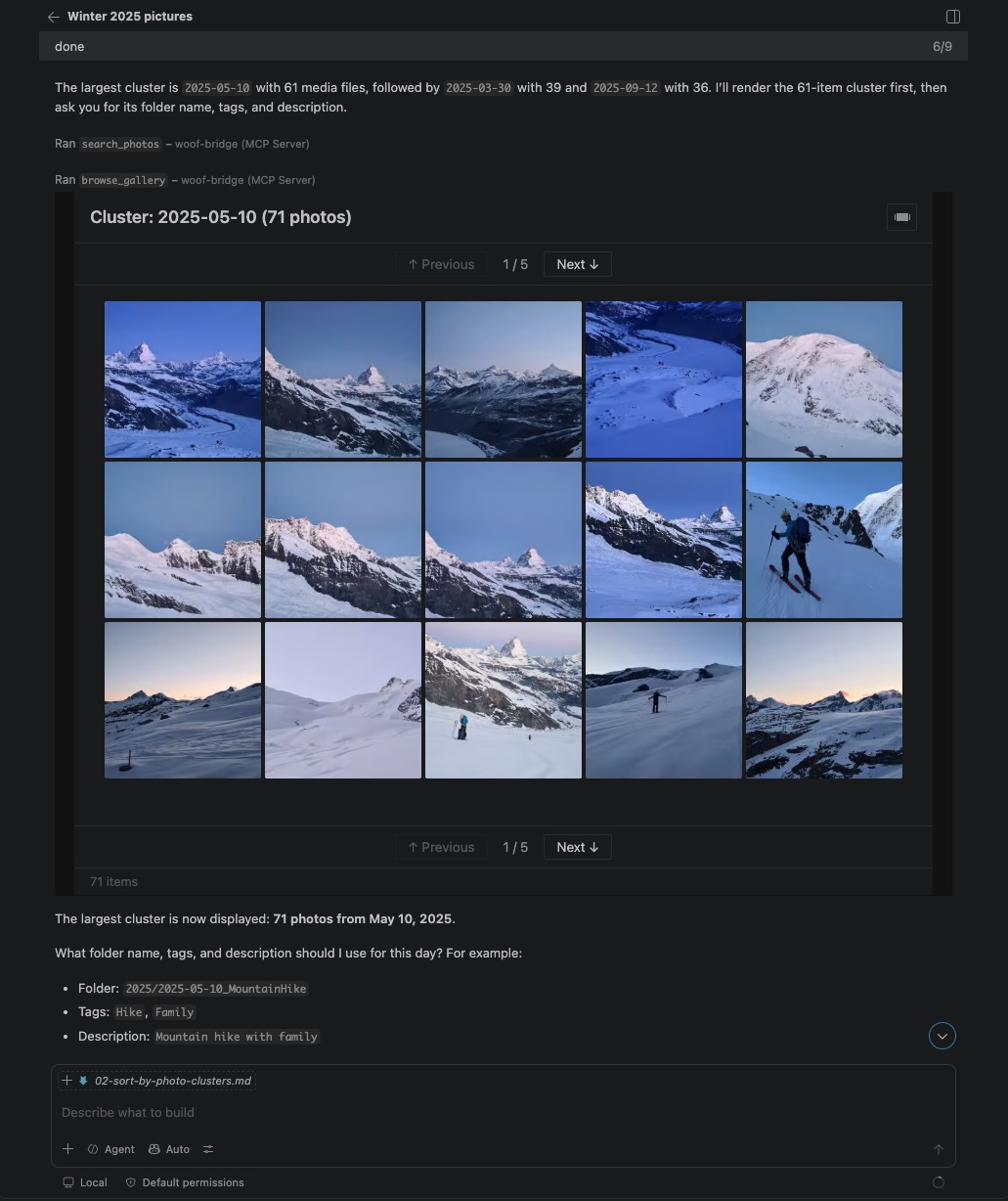
Automatically cluster, review in the OuEstCharlie Woof gallery and sort photos from VSCode Chat
Review the plan properly
Show me the full plan for everything we’ve decided.
Check three things before approving:
- File counts per folder — far more or fewer than you expect means a group wasn’t what you thought
- Anything left over — files with no destination are fine, but you should know they’re staying put
- Files with no sidecar — they’ll move but stay uncaptioned
Then:
Go ahead. Afterwards, tell me what’s still unsorted.
Knowing when to stop
You don’t have to finish. Filing the five biggest groups and leaving forty stray photos is a perfectly good outcome — those forty were never going to be found by browsing anyway, and they’ll still be there next time.
Let’s stop here. Leave the rest as they are.
Tidying up
When you’re finished with the practice folder:
Unregister the practice library from Woof.
Then delete the folder itself. Unregistering only tells Woof to stop tracking it — your photos stay where they are, which is the behaviour you want given they were copies of originals you still have.
What you’ve learned
- Biggest groups first: a few days account for most of the work
- Look at the photos before naming; ask about location and neighbouring days
- Rules for the common case, overrides for exceptions
- Stopping early is a legitimate outcome