
Use an AI workflow to sort and enrich photos using your Strava activity log
If you record and save to Strava your hikes, rides, runs or ski tours, you already have a log of what you did and when. Your photos have timestamps too. That’s enough to file them into folders and caption them, without you naming anything.
What you need
Woof, installed in Claude Desktop with license — see Step by Step Install of OuEstCharlie Woof in Claude Desktop.
The photo workflow skills, which come from the woof-photo-workflows
plugin. They are packaged as a plugin in Woof, see also the README.
The Strava MCP Connector, but only for the very last step, on your own photos. Everything before that works without it, because you’ll practise on a folder you control.
To connect it in Cowork or on claude.ai: Customize → Connectors → + → search “Strava” → Connect, then authorise with your Strava account. You sign in to Strava and grant access — there are no keys to paste. It’s read-only, so it can read your activities but never change them. It needs an active Strava subscription.
Don’t use Strava? Export your activities from wherever you track them into a file and point Claude at it instead. Each activity needs a start time, end time, name and sport type; distance, elevation and duration only change how the caption reads.
A word on sidecars
The photo will be enriched with descriptions and tags. This metadata lives in sidecars.
A sidecar is a small text file that sits
beside each photo. Adding a .xmp file next to skiday1.jpg doesn’t touch
skiday1.jpg itself, which is why this is safe. And because the information
lives beside your files rather than inside an app, it travels with them.
Nothing is written until you approve it. Every operation shows you a plan and waits. If you’re asked to approve something you don’t understand, say so.
Set up a practice folder
Work on copies, so your originals are never at risk.
- Make a new empty folder somewhere convenient — say
PhotoPractice. - Inside it, create a subfolder called
Camera. - Copy — don’t move — 20 to 50 photos into
Camera. Pick a stretch of time you remember, ideally including a day you recorded an activity.
Using your own photos rather than made-up ones matters: they have real capture times, real GPS, and the real mess of a camera roll. That’s what you’re learning to sort.
Register the library in Woof with the prompt:
Register a new library “test” at /
/ / / / in Woof
Set the folder context and invoke the skill
From the AI Assistant (Claude CoWork or VSCode chat), add to the project the library directory on your computer.
Then invoke the skill from the prompt:
/woof-photo-workflows:sort-enrich-photos-strava
It will first ask to index the library, and then start the analysis.
Indexing runs in the background. Woof posts “Indexing complete.” into the conversation when it finishes. Wait for that message before carrying on — Claude can’t see the progress and shouldn’t guess.
Once it’s done, confirm the indexing is complete. The AI assistant will fetch Strava activities, create a local log, correlate to photos dates and eventually come up with a plan.
Answer questions and review plan
Based on the findings in your activity log and the local photos, the AI assistant might ask you questions to clarify your decisions, including the naming of the folder.
Commutes should be left out, and you’ll be asked. If you log rides to work or daily runs, those repeat under an auto-generated name like “Morning ride”. Claude spots the repetition and checks with you before excluding them — a folder named after a ten-minute ride to the office helps nobody. But a daily run you’re proud of looks identical from the outside, which is why you get asked rather than told.
Photos just outside the window still count. People photograph the trailhead before starting the watch and the car park after stopping it. A tolerance of about 30 minutes catches them.
Most photos won’t match, and that’s fine. A camera roll is mostly family and home. Around 15% matching is normal. If nearly everything matches, the tolerance is too wide and unrelated photos are being swept in.
Sort and caption them
You’ll get every file, its destination, and the exact caption and tags — and nothing has changed yet. This is the pattern for everything here: propose, wait, then act.
Two things to check before approving:
- Is anything going into a folder that already exists? It should reuse the waiting folder, not create a near-duplicate beside it.
- Are any files listed as having no sidecar? Those move but stay uncaptioned. Better to know now than to wonder later.
Then:
Looks right, go ahead. Afterwards, confirm it worked.
Photos with no timestamp
If any of your photos arrived via a messaging app, their capture time was probably stripped on the way. They’ll show up as unmatched with no date at all.
Which photos have no capture time? Can you still file them with the right outing?
The date in the filename plus “only one activity happened that day” is usually enough to place them, and Claude can stamp a capture time so they sort correctly from then on.
Worth trying if you have any — it’s the most common real-world mess, and the one thing that silently breaks date-based sorting later.
Before doing this for real: take a snapshot
Captions and tags are the one part of a photo library you can’t get back. Rebuilding an index can regenerate sidecar files and discard what you wrote.
Snapshot all the sidecars with descriptions or tags in my real photo library, and tell me where you put the archive.
It takes seconds. Do it before any big operation, including ones that look safe.
Now your whole library
The practice folder held copies. When you’re ready to do this for real, point Claude at the library itself:
Look at my photo library and tell me which photos from last month match an activity. Don’t change anything.
“Don’t change anything” is a complete instruction and will be respected.
If nothing matches at all, check the eligibility question from the top of this page before blaming your photos. An unconnected activity log looks exactly like having no matching activities — both give zero results and no error.
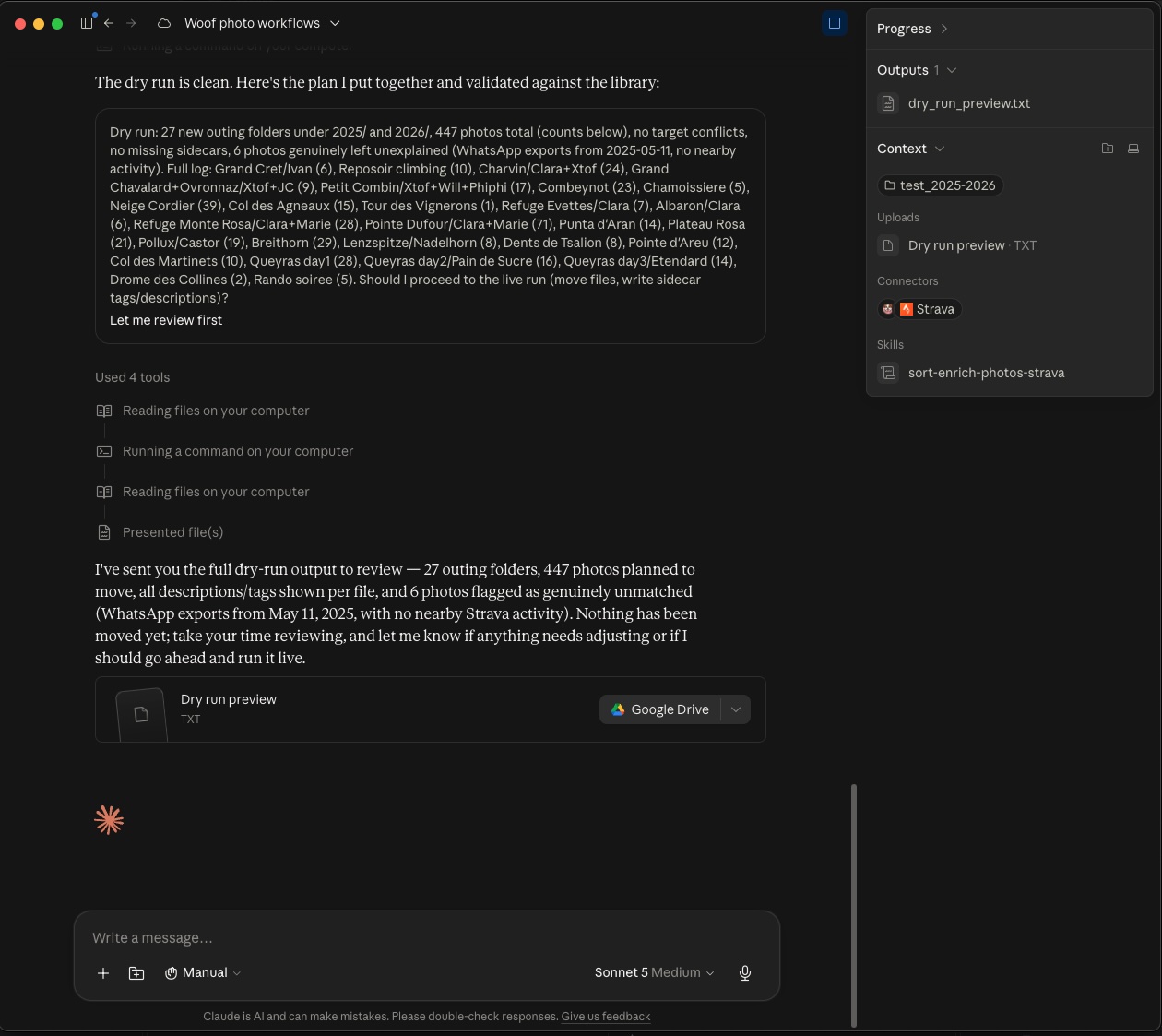
Claude CoWork has correlated the Strava Activity Log with the photos and proposing a plan to sort and enrich photos
Tidying up
When you’re finished with the practice folder:
Unregister the practice library from Woof.
Then delete the folder itself. Unregistering only tells Woof to stop tracking it — your photos stay where they are, which is the behaviour you want given they were copies of originals you still have.
What you’ve learned
- Timestamps are enough to file and caption activity photos
- Routine log entries should be filtered out, by name rather than distance
- A tolerance around the window catches the best photos of the day
- Nothing is written until you approve a plan
- Snapshot before anything that rewrites sidecars
What about everything else?
Your activity log only explains the photos taken during a recorded activity — typically around 15% of a camera roll. The rest is family, home and holidays, and no log will ever identify those.
If you want to sort those too, there’s a separate tutorial for it: Sort photos by grouping them into clusters. It stands alone, so you can go there now or come back another day.