Woof Is Different From Other Photo MCP Servers
You can already ask an AI assistant to “find my photos from Spain.” Most photo MCP servers either stop there — you get a list of filenames or paths back as text — or you have to switch to another app to actually look at anything. What sets Woof apart is what happens the moment after the search: you see your photos, browse them, flip through them, without ever leaving the conversation.
The Landscape Today
As of today, none of Apple, Google, Microsoft, or Amazon has released an official MCP server for their own photo product — not Photos, not Google Photos, not OneDrive, not Amazon Photos (see References below).
That leaves a handful of community projects, each solving a different slice of the problem:
- drolosoft/immich-photo-manager — CLIP-based natural-language search over a self-hosted Immich library, plus geographic and temporal album curation. Notably, it does produce a browsable surface: on request, it generates a self-contained HTML page with embedded thumbnails — closer to Woof than most competitors, but it’s a file you open separately, not a view rendered live inside the conversation.
- barryw/ImmichMCP — the same Immich backend, with CLIP semantic search and structured metadata filters, but results come back as JSON with thumbnail/download URLs only. No gallery generation — you or your client has to render them.
- sweetrb/apple-photos-mcp — queries the macOS Photos library directly via
osxphotos. Search is structured filters only — date range, album, keyword, person, favorite/hidden, title/description substring — no semantic or visual search. It’s fully local with no credentials of any kind, but viewing a photo still means opening it in Photos.app or exporting it to disk. - savethepolarbears/google-photos-mcp — broader than pure metadata filtering: a genuine text search against the Google Photos API (leaning on Google’s own backend categorization), plus structured filters and location search. It also ships a Picker API flow that opens your browser to Google’s own picker UI — a real browsing surface, just not one rendered inside the AI conversation. And it requires a Google Cloud OAuth client ID and secret, plus a full consent flow, before any of it works.
None of them render a live, interactive photo gallery inside the AI conversation itself. The closest is immich-photo-manager’s generated HTML gallery — and even that’s a separate artifact, not something rendered live where you’re chatting.
How they stack up
| MCP server | Search | Browse in-chat | No credential sharing | Metadata editing |
|---|---|---|---|---|
| Woof | 🟡 Full-text search on description + structured facets | ✅ Inline MCP App (grid/carousel/full-screen), rendered live in the conversation | ✅ Local-only, STDIO | ❌ Read-only, index-and-search only |
| drolosoft/immich-photo-manager | ✅ Semantic (CLIP) + facets (geo/temporal) | 🟡 Generates a separate HTML gallery page, not inline | ❌ Immich instance API key | ✅ Tags, bulk rotation, metadata repair (timestamps/GPS/timezone), trash/delete/restore, face merge |
| barryw/ImmichMCP | ✅ Semantic (CLIP) + facets | ❌ JSON + URLs only, no gallery | ❌ Immich instance API key | ✅ Asset metadata update, full album/tag CRUD, people update/merge, comments/likes |
| sweetrb/apple-photos-mcp | Structured facets (date/album/keyword/person) | ❌ JSON only, view in Photos.app or export | ✅ Local-only, no credentials | ❌ Explicitly read-only against the library, export-only |
| savethepolarbears/google-photos-mcp | ✅ Text search + structured facets | 🟡 Picker API opens Google’s picker in the browser, not inline | ❌ Google OAuth client ID/secret | 🟡 Album create/upload/cover + album-level enrichment only, no per-photo rating/tag/caption |
A note on that last column: the two Immich-backed servers need an API key for the user’s own self-hosted Immich instance — a smaller trust boundary than handing OAuth credentials to a third-party cloud API, even though both count as “a credential the MCP server holds.”
Woof can combine many facets (date, rating, dimensions, orientation, tags, GPS, camera make/model/lens, ISO/aperture/shutter/focal length) and textual description. What it doesn’t have yet is CLIP-style visual semantic search: finding a photo because it looks like a sunset, not because the word “sunset” appears somewhere in its tags or description. More on that below.
Search and Browse, in One Place
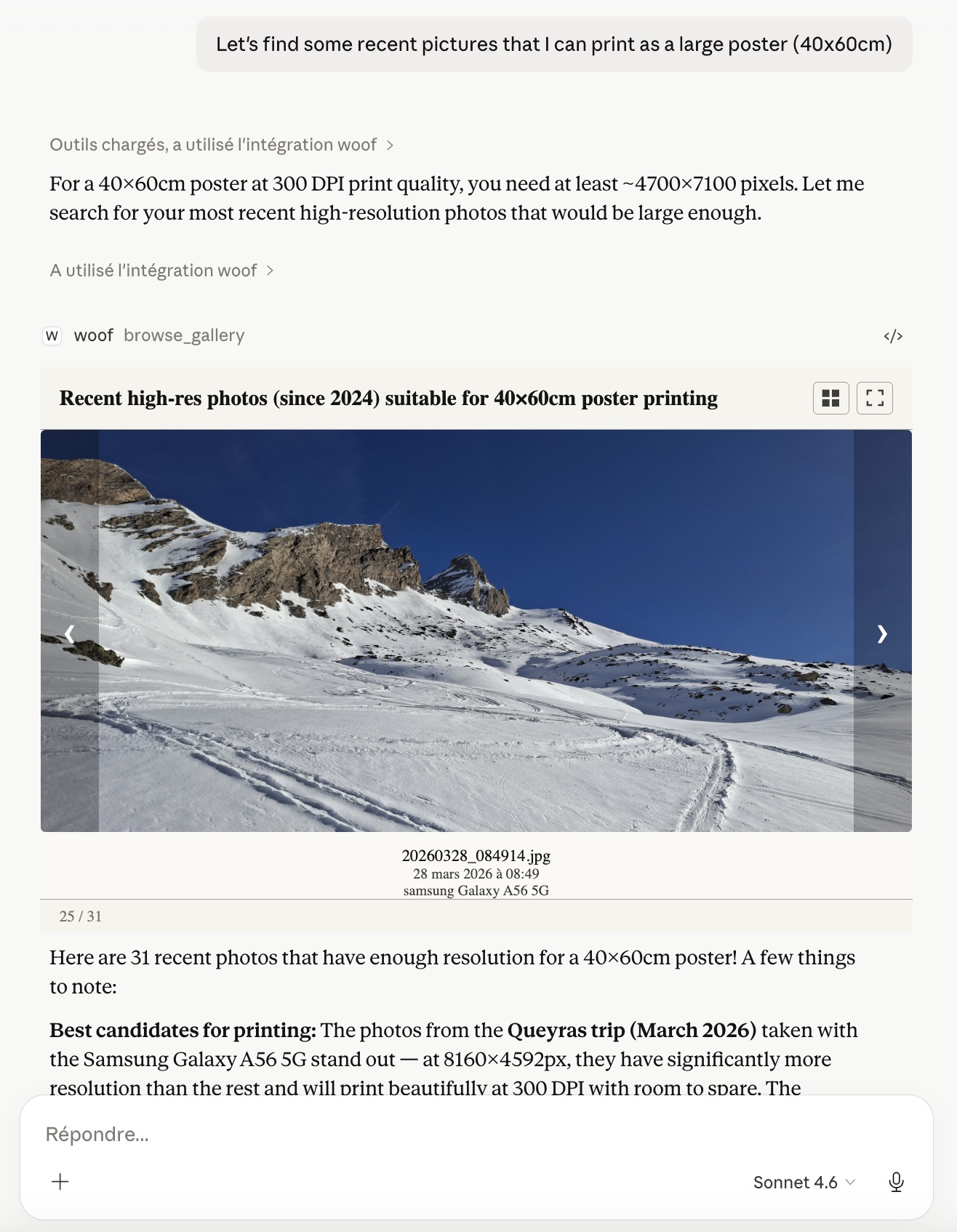
Woof’s gallery is an MCP App — an interactive view rendered directly inside the Claude conversation. Ask “show me the beach trip from 2024,” and a live grid appears that you can scroll, switch to carousel, or open full-screen — all inline, with no context switch to another application. That’s the core of what makes Woof different: not a smarter query, but not losing the thread when you go to actually look at the results.
Refining What You’re Looking At
Because search and browsing live in the same surface, you can narrow, broaden, or pivot the query conversationally while looking at what’s on screen: “now just the ones with Mia,” “zoom into that one,” “go back a week.” Competitors whose tool response is text can’t support this — there’s nothing on screen to point at.
A Crowd of Agents Behind One Experience
Under the hood, Woof mediates a set of stateless agents — Wally handles query and browse, Whitebeard handles ingestion — behind this single conversational surface. That means the search-and-browse experience can keep growing (enrichment, memories, more agents) without the whole system becoming a monolith.
No Credential Sharing
Several competitors require handing the MCP server a credential: Google Photos MCP needs a Google Cloud OAuth client ID and secret plus a full consent flow; the two Immich-backed servers need an API key for your Immich instance (a smaller trust boundary, since that’s usually self-hosted, but still a credential the process holds). Woof is local-only — there are no API keys to generate, share, or revoke. The assistant talks to a local MCP server over STDIO, and there’s no credential to leak because none exists.
Your Metadata Stays Yours
Every fact Woof learns about a photo — tags, ratings, description, GPS, camera settings — is written to an XMP sidecar next to the original file, an open ISO standard that Lightroom, Darktable, and ExifTool can all read. The LanceDB index that powers search is just a local, rebuildable cache derived from those sidecars — not a proprietary database holding the only copy. Stop using Woof, and your metadata doesn’t disappear with it: it’s already sitting on your drive, in a format any tool can open.
Where Woof Still Trails
Woof V1 only supports local and mounted drives. Competitors already run against a real, hosted or self-hosted multi-user server — a legitimate advantage if your library lives there.
While Woof’s structured facets and full-text description search cover a lot of ground, it isn’t CLIP-style visual semantic search. “Sunset at the beach” only finds something if that language shows up in a tag, a keyword, or the description — most competitors search the actual pixel content of the photo.
Also, Woof is not editing the metadata yet: rating, commenting, grouping into albums of tags.
What’s Next
Woof optimizes the experience of asking and then looking — search and browsing unified in one conversation, instead of a query that dumps you into a separate app to see the results. Backend breadth and visual semantic search are on the roadmap, not solved yet.
Try It Today

Woof — the MCP app for OuEstCharlie — is available now as an early preview. Here is how to go from zero to browsing your library in three steps.
Step 1 — Install Woof
The easiest path is a single double-click. Download the latest ouestcharlie-woof.mcpb from the Releases page and open it. Claude Desktop will prompt you to install Woof in one click — no configuration file to edit, no terminal required.
If you prefer a manual setup or use a different AI client (ChatGPT Desktop, Goose, VS Code Copilot), add Woof via uvx:
{
  "mcpServers": {
    "woof": {
      "command": "uvx",
      "args": ["--python", "3.12", "--from", "ouestcharlie-woof", "woof"]
    }
  }
}
Step 2 — Point Woof at your photos
Once Woof is connected, tell your AI assistant where your photos live:
“Add a local library to Woof pointing to /Users/your-name/Pictures”
Then kick off indexing:
“Index my local library”
Woof reads your library as-is — no migration, no reorganization. It writes XMP sidecar files next to your originals (never touching the originals themselves) and builds a fast metadata index. Expect roughly 10–100 seconds per thousand photos.
Step 3 — Start searching
Once indexing is done, your library is fully accessible through natural conversation:
“Show me photos from last July”
“Pictures taken near Paris”
“How many photos do I have?”
The gallery panel appears inline in your conversation with matching results. Your photos never leave your machine — only metadata and thumbnails travel to the AI assistant.
V1 supports local filesystems on macOS, Linux, and Windows, including folders synced from iCloud Drive, OneDrive, or Google Drive as long as files are locally available. Native cloud storage is on the roadmap for V2.
Get Woof on GitHub — see the README for full install and usage details.
If it does not work
First check the step by step install guide.
If your problem remains unsolved after going through this guide, please file an issue on the Woof GitHub repository — include the logs above and a description of what you tried.
References
- Google’s official MCP servers cover Workspace and Cloud services, not Google Photos.
- Apple’s official MCP servers are Safari/WebKit developer tools, not Photos.
- Microsoft ships an official OneDrive/SharePoint MCP server, but it’s general file management, not a photo-specific search-and-browse surface.
- AWS’s official MCP servers are cloud infrastructure — nothing for Amazon Photos.
Metadata-editing capabilities (see the comparison table above) are drawn from the same READMEs already linked in The Landscape Today: drolosoft/immich-photo-manager’s “Highlights” section (tags, bulk rotation, metadata repair, trash lifecycle, face merge), barryw/ImmichMCP’s Albums/People/Tags/Activities tool tables, sweetrb/apple-photos-mcp’s explicit “Read-only against the Photos library” banner, and savethepolarbears/google-photos-mcp’s “Write operations” list (album-level only, no per-photo fields).