
How to install and first steps with Woof
OuEstCharlie Woof is the photo and video gallery companion to your your AI assistant (Claude Desktop, Goose, VS Code / GitHub Copilot…). It complements those powerful tools with a searchable gallery. Your photos and videos remain exactly where they are — on your own drives (local or mounted).
Woof runs as a local MCP server. It connects to your AI desktop client (Claude Desktop, Goose…) and exposes your photo library as a set of tools.
Woof also provides a plugin containing skills to create workflows in the AI harness.
Option A — Bundle install (recommended but Claude Desktop only)
Add Woof extension to Claude Desktop
- Download the latest ouestcharlie-woof-0.15.2.mcpb
- Double-click this file or drop it on Claude Desktop. It will prompt you to install Woof in one click — no configuration file to edit.
See also the specific post: Step by Step install of OuEstCharlie Woof in Claude Desktop
Option B — Manual uvx configuration
Prerequisites
Python packages of OuEstCharlie Woof are managed by Astral uv and the command uvx. uv might be already available on your system.
System prerequisites (all install options):
- macOS:
brew install inih brotli gettext(required by pyexiv2 at runtime) - Linux or Windows: no extra steps
Add Woof MCP to Claude Desktop
Reference: Getting Started with Local MCP Servers on Claude Desktop
Open (or create) ~/Library/Application Support/Claude/claude_desktop_config.json and add or update mcpServers:
{
  "mcpServers": {
    "woof": {
      "command": "uvx",
      "args": ["--python", "3.14", "--from", "ouestcharlie-woof", "woof-bridge"]
    }
  }
}
Restart Claude Desktop. Woof will appear as an MCP integration, and the gallery will render as an interactive panel inside your conversation.
Add Woof MCP to VS Code (Github Copilot harness)
To install in VS Code:
- From the command Palette (Ctrl+Shift+P or Cmd+Shift+P), select “MCP: Add Server…”
- Simplest is using “Pip Package” install option
- Type in the Woof package name: “ouestcharlie-woof”
- Accept to confirm
- The entry point is woof-bridge (not woof as proposed by the prompt)
The composed configuration should be:
{
	"servers": {
		"woof-bridge": {
			"command": "uvx",
			"args": [
				"--python",
				"3.14",
				"--from",
				"ouestcharlie-woof",
				"woof-bridge"
			],
			"type": "stdio"
		}
	},
	"inputs": []
}
Check if woof-bridge is activated through the “MCP: List Servers” from the Command Palette.
Add Woof Extension to Goose
Reference: Goose MCP extensions documentation
Goose supports MCP servers via its extension system.
Either add through the user interface as a Custom Extension:
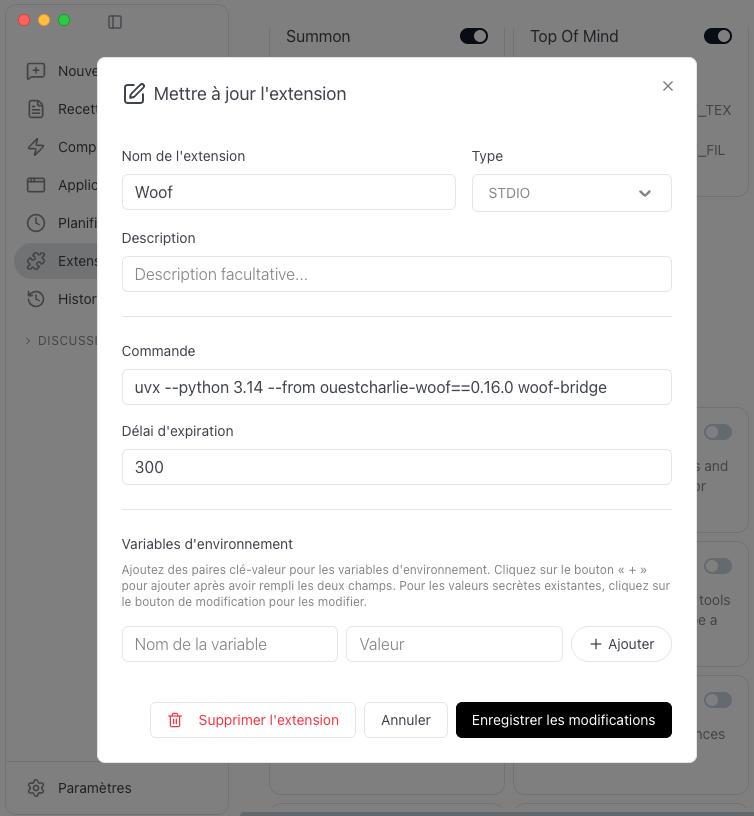
Setup Woof extension in Goose
Or add the following to your Goose configuration (~/.config/goose/config.yaml):
extensions:
  woof:
    type: stdio
    cmd: uvx
    args: ["--python", "3.14", "--from", "ouestcharlie-woof", "woof-bridge"]
    enabled: true
Other supported AI Assistants
Other clients support MCP Apps, for example Codex.
See the MCP Extension Support Matrix
Install skill plugin (optional)
Woof provides optional skills with workflows, see the Tutorial section below. To install the plugin containing the skills, reference this repository as ouestcharlie/ouestcharlie-woof:
- Claude Desktop, from the Settings > “Plugins” > “Add” at the top-right corner > “Add a market place” > “Add from a repository”
- VSCode, from the Command Palette > “Chat: Install Plugin from Source”
First Steps
1. Register your photos folder
Once Woof is connected to your AI client, ask it to register your photo folder:
“Add a local library to Woof pointing to /Users/yourname/Pictures”
Woof supports any folder on a local drive — including folders synced from iCloud Drive, OneDrive, or Google Drive, as long as the files are locally available.
2. Index your library
Trigger the indexer to scan your photos and build the metadata index:
“Index my local library”
Woof will launch the indexing agent, which will:
- Read EXIF/XMP metadata from each photo
- Write XMP sidecar files alongside your originals (never modifying the originals)
- Generate thumbnails and previews
- Build a fast index for querying
Indexing speed is roughly 10 to 100 seconds per 1,000 photos depending on format and hardware.
3. Start browsing
Once indexing is complete, just ask:
“Show me photos in Woof from last July”
“In Woof, show me pictures taken near Paris”
“Search Woof for photos with ‘Tour Eiffel’ in the description”
“How many photos do I have in Woof?”
The gallery panel will appear inline in your conversation with matching results.
Ouestcharlie Woof AI native photo gallery - Search, browse, sort and enrich photos in your AI harness
More tutorials
- Create your personal photo gallery with Claude, Strava and OuEstCharlie Woof
- Use an AI workflow to sort and enrich photos by grouping them into clusters
- Use an AI workflow to sort and enrich photos using your Strava activity log
Storage
Woof supports local filesystem and cloud_mount libraries on macOS, Linux, and Windows:
- filsystem for a standard local hard drive or SSD, including local network drive (e.g. NAS)
- clound_mount for a folder synced from iCloud Drive, OneDrive, Google Drive, or Infomaniak kDrive — as long as files are downloaded and locally accessible
Native cloud storage (S3, Azure, GCS, OneDrive API) is planned.