Search, browse and maintain your darktable library with Woof
Antoine Hue
•
20 October 2026
•
7 mins
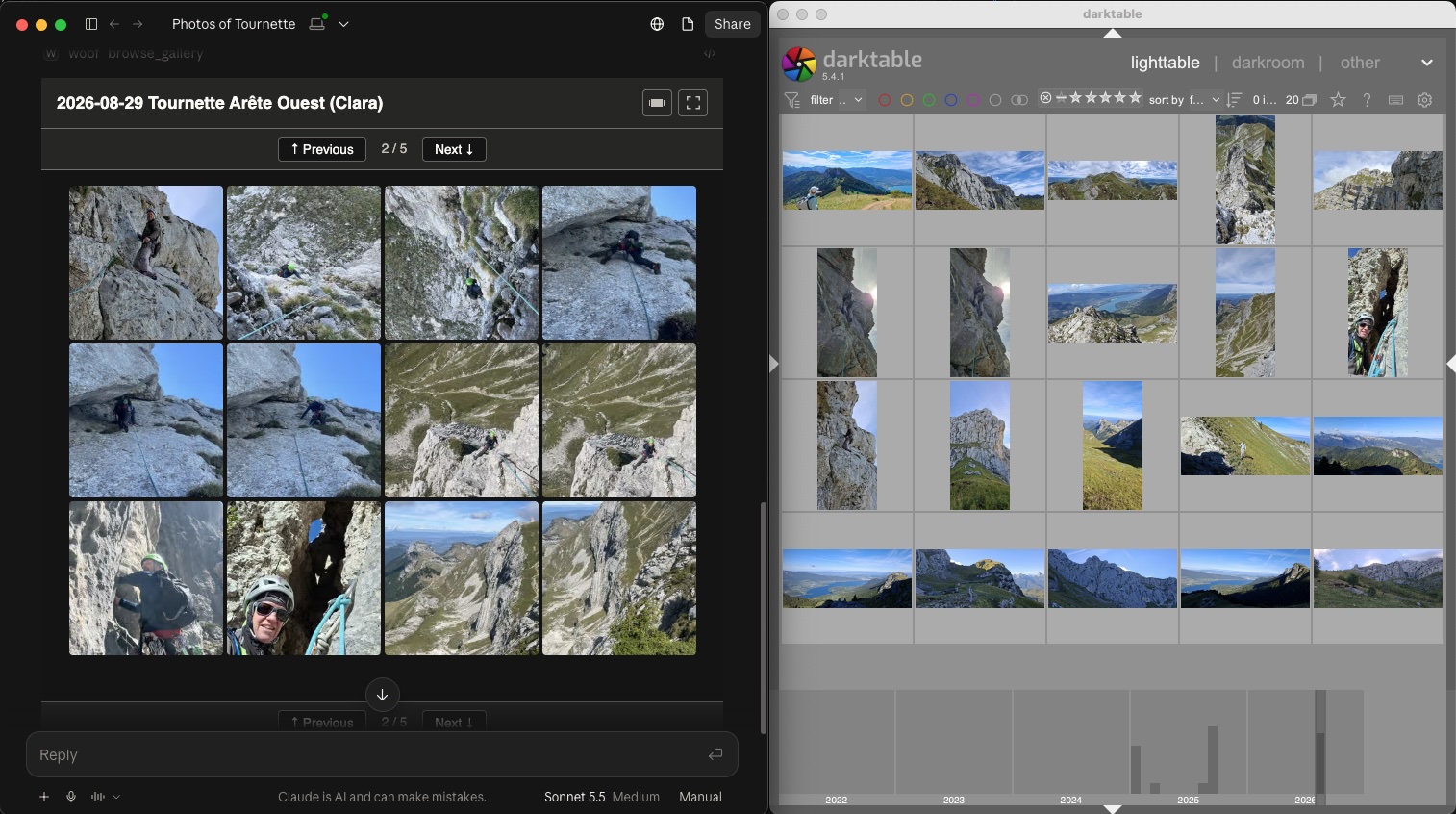
darktable is a great place to develop a photo. Finding one again is harder: “the sunset over the lake, two summers ago, the one I rated well” means clicking through film rolls and collection filters.
Woof lets you ask for it in a sentence, from Claude or any other AI assistant, and shows the matches in a gallery inside the conversation. It works on the library darktable already manages: no import, no second catalogue, and darktable stays your editor.
This tutorial shows how to set both up so they share the same metadata, how to search and browse a darktable library with Woof, and how to use Woof’s skills to keep it sorted and captioned.
How they fit together
darktable and Woof meet in one place: the XMP sidecar, the small text file
next to each photo. For IMG_1234.jpg, both read and write
IMG_1234.jpg.xmp, which is darktable’s own naming convention.
- darktable keeps its database. It reads a sidecar when it imports a photo, and from then on writes it from its database.
- Woof never opens darktable’s database and never modifies your photos. It reads the sidecars and the photos, and writes only the sidecars. When it does, it keeps everything darktable put there, your edit history included.
So the sidecar is the meeting point, and the only thing to arrange is that each tool notices when the other has changed it.
What you need
A recent darktable, with your library in folders on your computer.
Woof, installed in your AI assistant (Claude Desktop, VS Code chat…) — see How to install and first steps with Woof or the Step by Step Install of OuEstCharlie Woof in Claude Desktop.
The photo workflow skills (optional, for the last part), from the
woof-photo-workflows plugin — see
Install skill plugin.
Set up darktable first
darktable reads a sidecar only when it imports a photo. After that its database wins: any change you make in darktable rewrites the whole sidecar from the database. Two settings make changes flow both ways. Open darktable’s preferences, storage tab, XMP sidecar files section (darktable manual):
- create XMP files: on import (the default). darktable writes the sidecar when it imports a photo and after every change: rating, tags, description, edits. That is how your darktable work reaches Woof. With “after edit”, photos you never edit are never written; with “never”, Woof sees nothing of what you do in darktable.
- look for updated XMP files on startup: checked (unchecked by default). At startup, darktable lists the photos whose sidecar is newer than its database, and asks, photo by photo or for all of them, whether to reload the sidecar or overwrite it from the database. That is how Woof’s descriptions and tags reach darktable: choose to reload the sidecars Woof changed. The lighttable may keep showing the old rating on the thumbnails after the reload: the change is in darktable’s database, and the thumbnails show it the next time you start darktable.
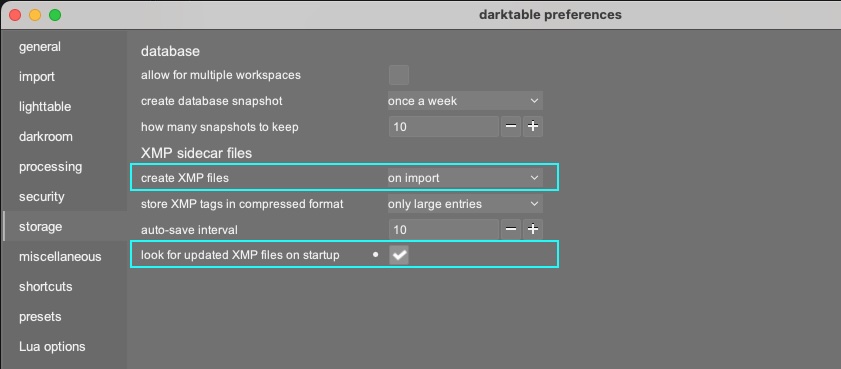
darktable preferences, storage tab with the two required settings to synchronize the XMP sidecars
One rule follows from the second setting: close darktable before letting Woof write to sidecars. darktable checks for updated sidecars only when it starts. If Woof changes a sidecar while darktable is open, darktable doesn’t notice, and the next change you make to that photo in darktable overwrites Woof’s.
Point Woof at your darktable library
Register the folder that holds your darktable film rolls:
Register a new library “darktable” at /Users/your-name/Pictures/darktable in Woof
Then index it:
Index my darktable library
Indexing runs in the background. Woof posts “Indexing complete.” into the conversation when it finishes. Expect roughly 10–100 seconds per thousand photos.
What Woof sees from darktable
| In darktable | In Woof |
|---|---|
| Star rating, including rejected | rating |
Tags from the tagging module, e.g. Places|Europe|France |
hierarchical tags, searchable by branch or at any level |
darktable’s automatic tags (darktable|format|jpg, darktable|changed…) |
left out of search, but kept in the sidecar |
| Description in the metadata editor | description, with full-text search |
| Location set in the map or geotagging module | GPS position |
| Capture date | date, with the time zone recovered from the photo itself |
Woof also reads what darktable doesn’t manage: camera, lens, aperture, dimensions, video duration.
One thing to know about ratings: darktable gives every imported photo one star by default, so a one-star photo in Woof may just be one you never rated. You can change that default in darktable’s import settings.
Search and browse
Ask in your own words:
Show me my photos rated 4 stars or more from last summer
Pictures tagged France taken near Annecy
Photos shot with the 24-70 at f/2.8 or wider, sorted by date
Find the photo of the sunset over the lake, I think I described it as golden hour
The gallery opens in the conversation with the matches. Open a photo for its details, then go back to darktable to develop it: the gallery tells you which folder it is in.
After working in darktable, Woof sees your new ratings, tags and descriptions once it reindexes the folders you worked on:
Reindex the 2025 folders of my darktable library
A plain reindex is all you need. Don’t ask Woof to re-extract EXIF on a darktable library: it rebuilds each sidecar from the photo alone, which wipes darktable’s edit history along with your tags, descriptions and ratings.
Keep the library sorted and captioned with the skills
The two photo workflow skills sort a folder of new photos into one folder per day or per outing, and write a description and tags into each sidecar:
- sort and enrich by grouping photos into clusters — family, home, holidays;
- sort and enrich using your Strava activity log — hikes, rides, runs, ski tours.
With darktable, the order matters: sort before you import.
- Copy the new photos from your camera into an import folder, say
Camera, inside the library. - Run one of the skills on
Camera. Approve the plan: the photos move into their folders, with a description and tags in their sidecars. - In darktable, import the new folders with add to library. darktable reads the sidecars at import, so the descriptions and tags are there from the start.
Why before? darktable tracks photos by their location. Once a photo is in darktable, moving its file from outside darktable makes darktable lose track of it: it shows the photo as missing. To reorganise photos already in darktable, move them from darktable itself.
For photos already in darktable, use the skills to caption and tag without moving anything:
Add descriptions and tags to the photos of the 2025-08-24 folder, but don’t move any file
Close darktable first. When you start it again, it lists the photos whose sidecar changed: choose to reload them.
What you’ve learned
- darktable and Woof share one sidecar per photo; Woof keeps everything darktable writes there
- Two darktable settings make changes flow both ways: create XMP files on import, and look for updated XMP files on startup
- Close darktable while Woof writes, and reload the updated sidecars at startup
- Sort with the skills before importing into darktable; after import, caption and tag without moving files
Like it? Share it!